A translation set is a list of translation mappings between two value sets. Learn more about translation sets.
- All environment users can view translation sets. However, a user must be assigned to an engineer or a support role to manage translation sets. Learn about user roles.
- You must have already defined two value sets either in the Redox dashboard or in a CSV file (must have at least 25 defined values) to create a translation set. Learn how to create value sets.
A translation set is bi-directional by default. This means the values can be translated in either direction: FROM-TO or TO-FROM. When you map more than one value to the same value, the translation set becomes uni-directional. A uni-directional translation set can only be linked going FROM - TO. Learn more about directionality.
- Log in to the Redox dashboard.
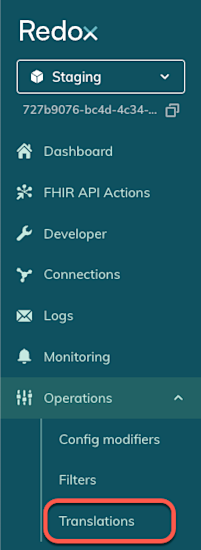
- From the side nav menu, click the Operations drop-down.
- The Operations options expand. Click the Translations option.

Translations in the side nav - By default, the Value sets tab opens. Click the Translation sets tab.
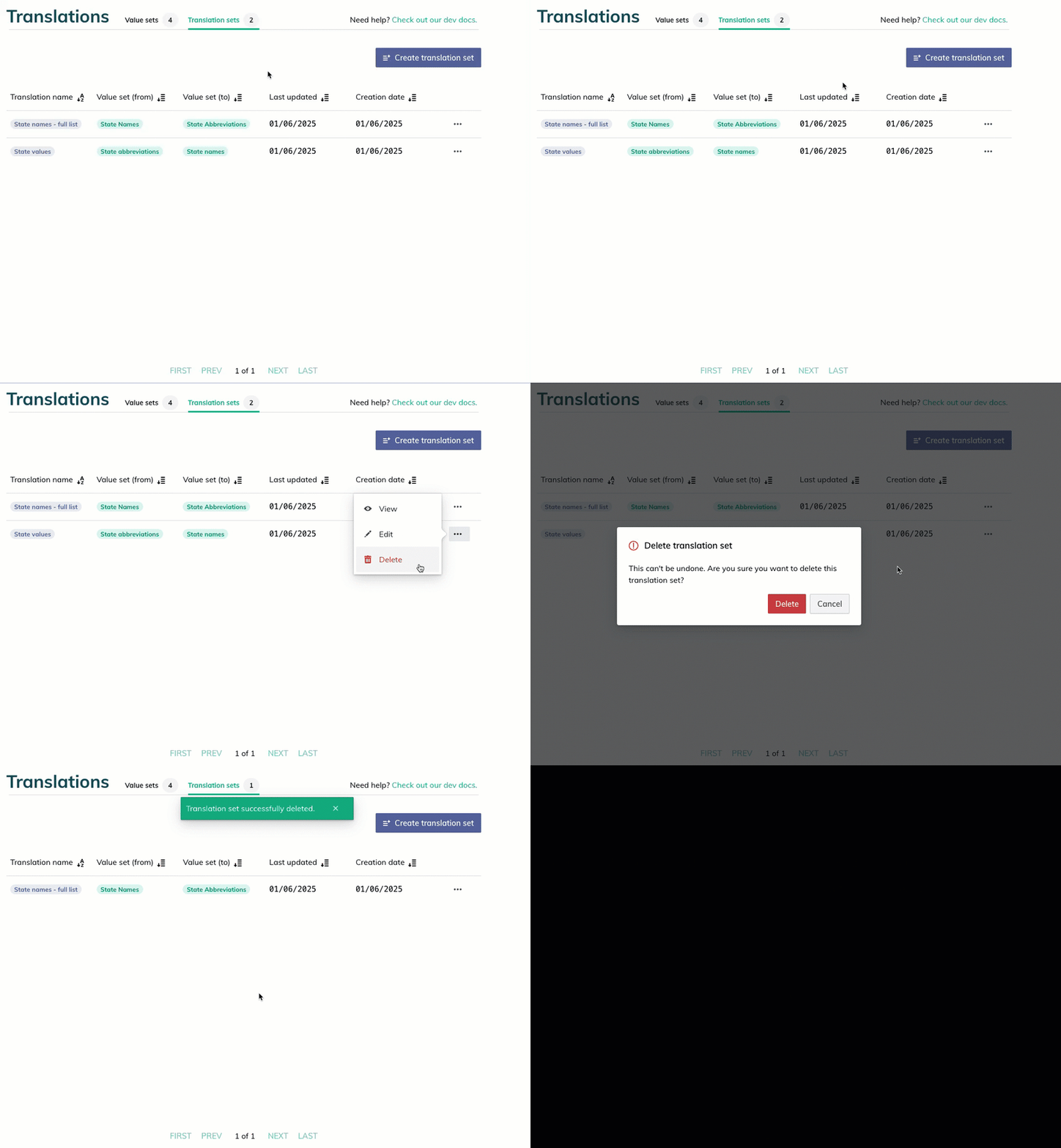
- Any existing translation sets in the environment display. To see details of a specific translation set, click the three-dots icon.
- From the drop-down menu, click the View option.
- The translation set’s details page opens.

Follow the instructions to view existing translation sets.
On the Translation sets tab, click the Create translation set button to open the wizard. The instructions below take you through each step of the wizard.
- Enter a unique human-friendly name up to 500 characters (names must be unique within the environment). Then click the Next button.

Name a translation set

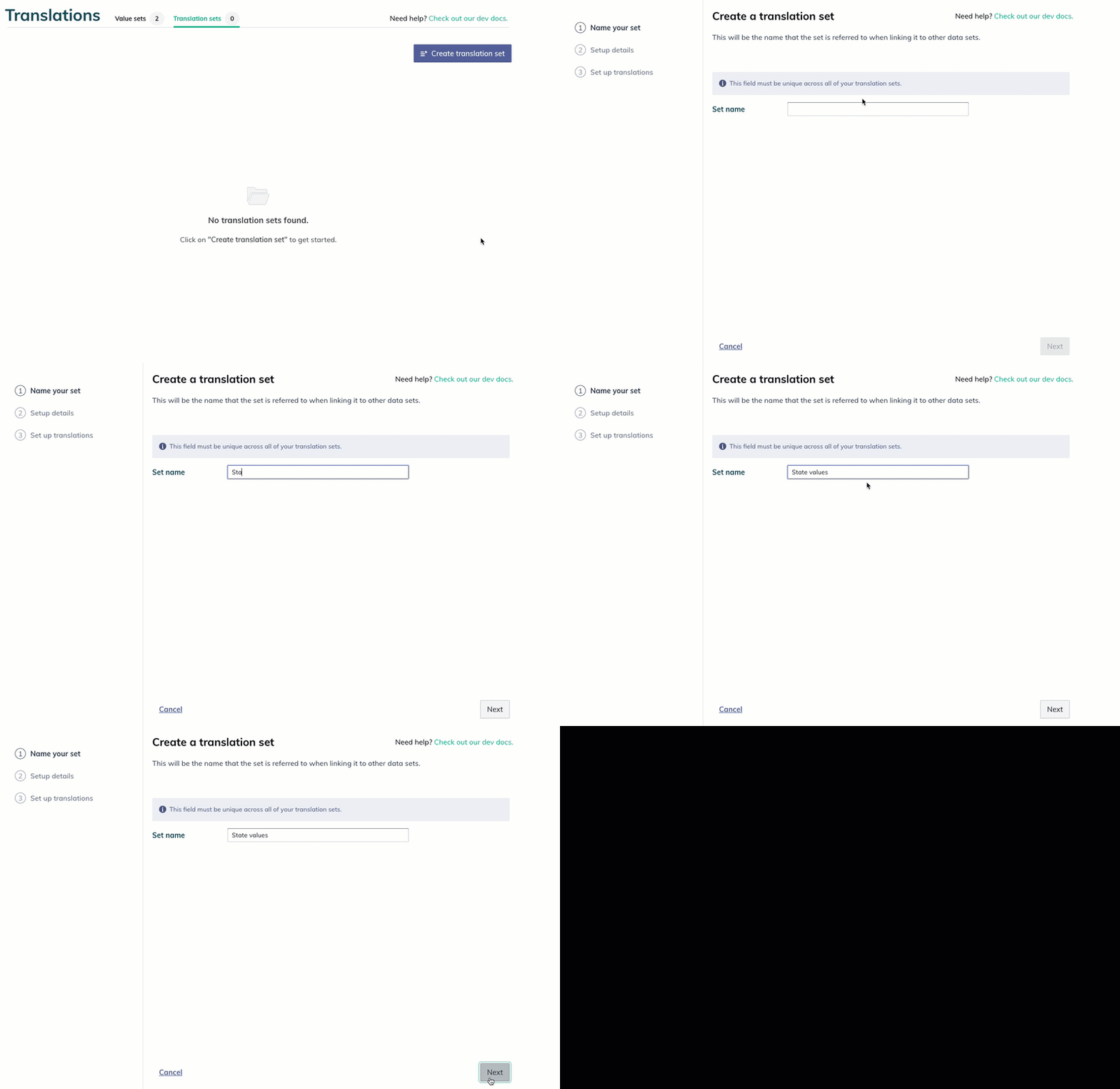
- You can either build translations from existing value sets in the Redox dashboard or import value sets with translations defined in a CSV file.


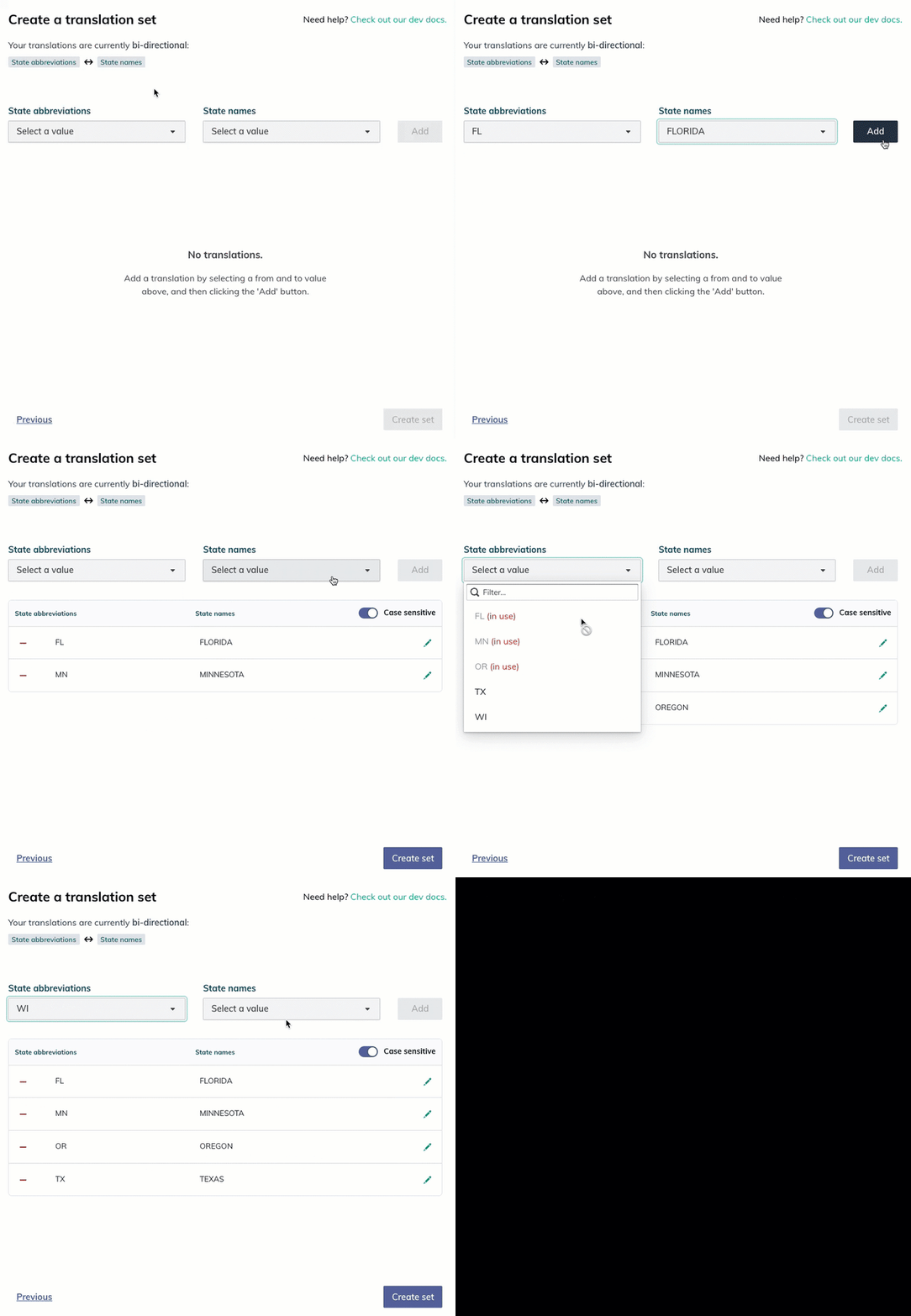
- The default directionality and the selected value sets appear at the top of the tab.
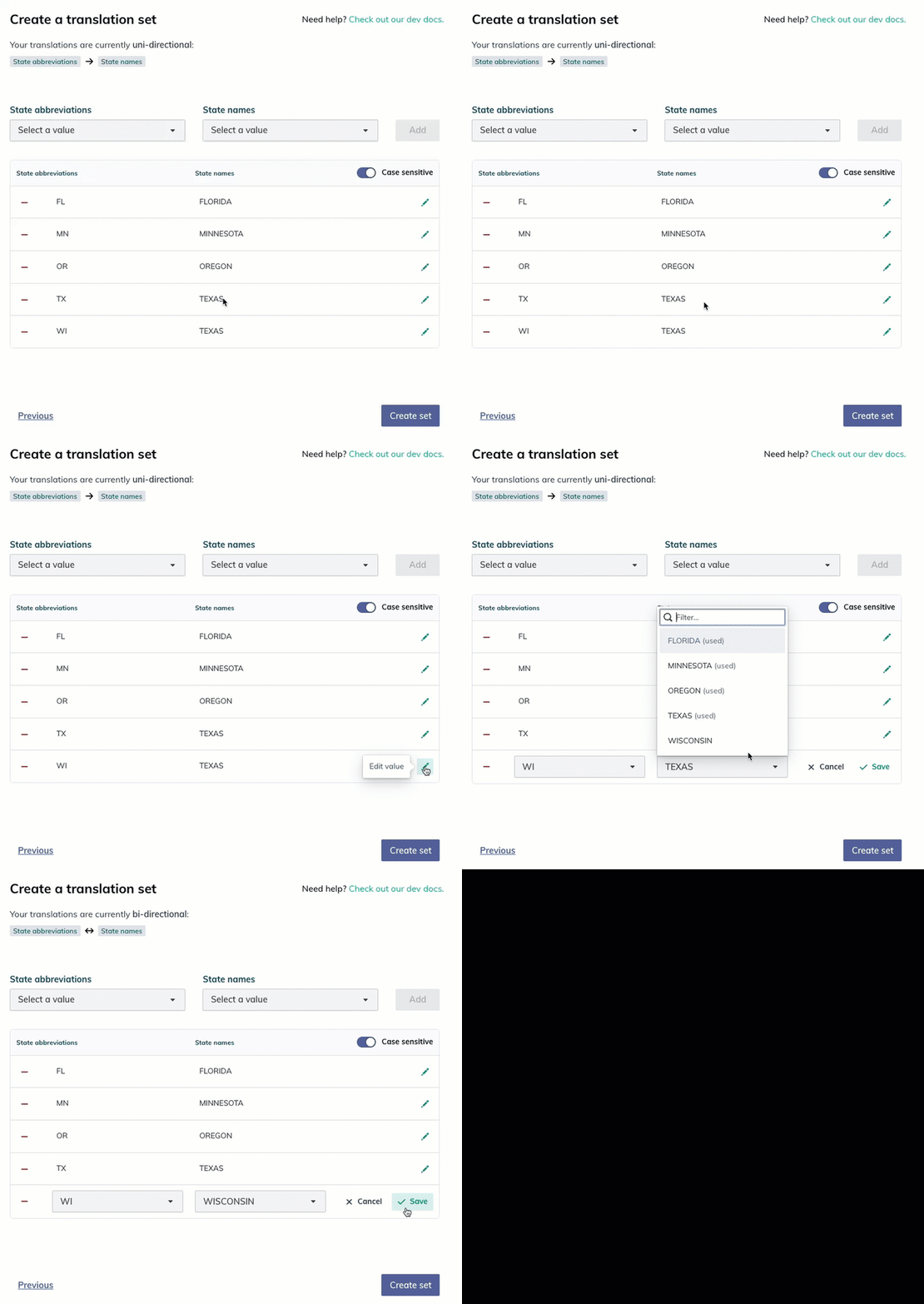
- From the drop-down fields, select the values to map to each other, then click the Add button.
- Repeat the previous step for each translation you want to create (up to 5,000 translations). The translations appear in the table."In use" values and directionality

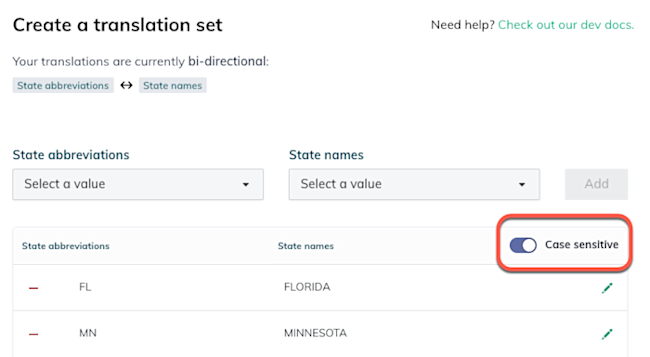
Add translations - Translation sets are case sensitive by default. To change it, toggle the Case sensitive option to OFF. If you turn off case sensitivity, any value that matches a FROM value, regardless of casing, will be translated to the indicated TO value.

Case sensitive option Disabled case sensitive option - Review the table with your translations and make any changes.
- To edit a translation, click the pencil icon on the right. Select the correct values from one or both of the drop-down menus.

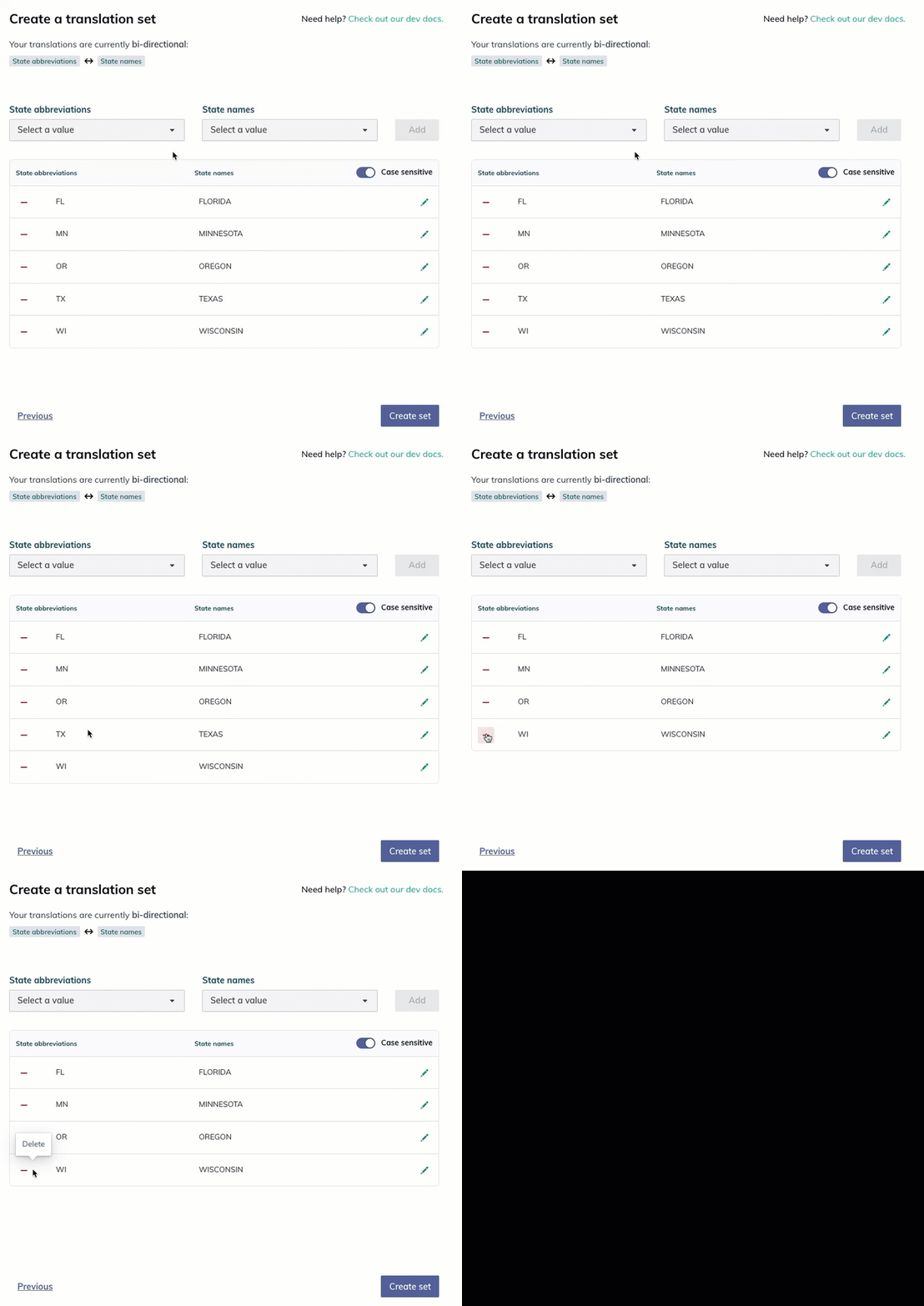
Edit a translation - To delete a translation, click the minus icon on the left. This only deletes one translation in the table, not the entire translation set.

Delete a translation
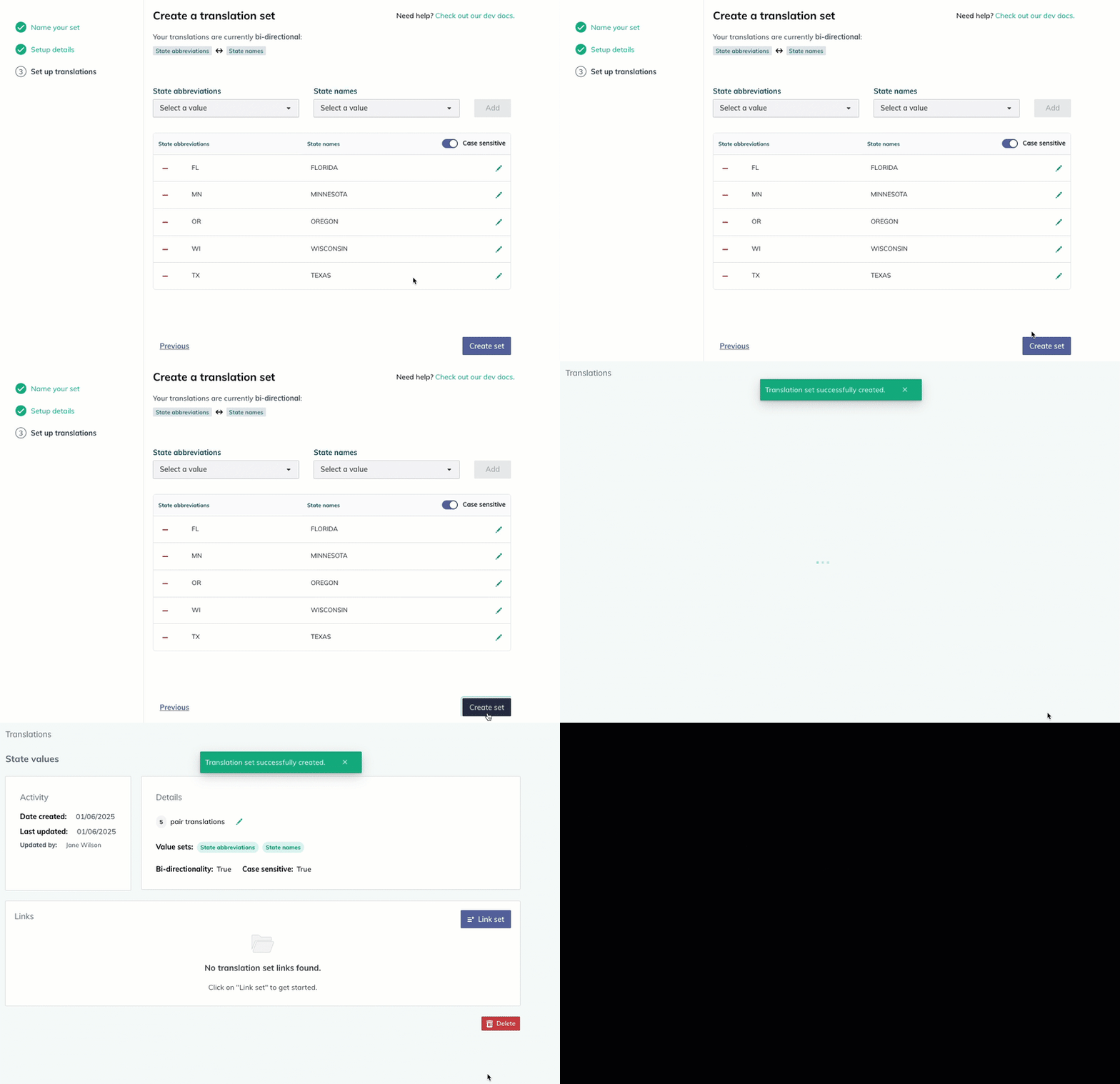
- Click the Create set button.

Create translation set - Follow the instructions to link the translation set to apply these translations to your traffic.





- Follow the instructions to view existing translation sets.
- Find the translation set you want to edit or delete. Click the three-dots icon.
- From the drop-down menu, click the relevant option.
- Select the Edit option.Editing promoted assets
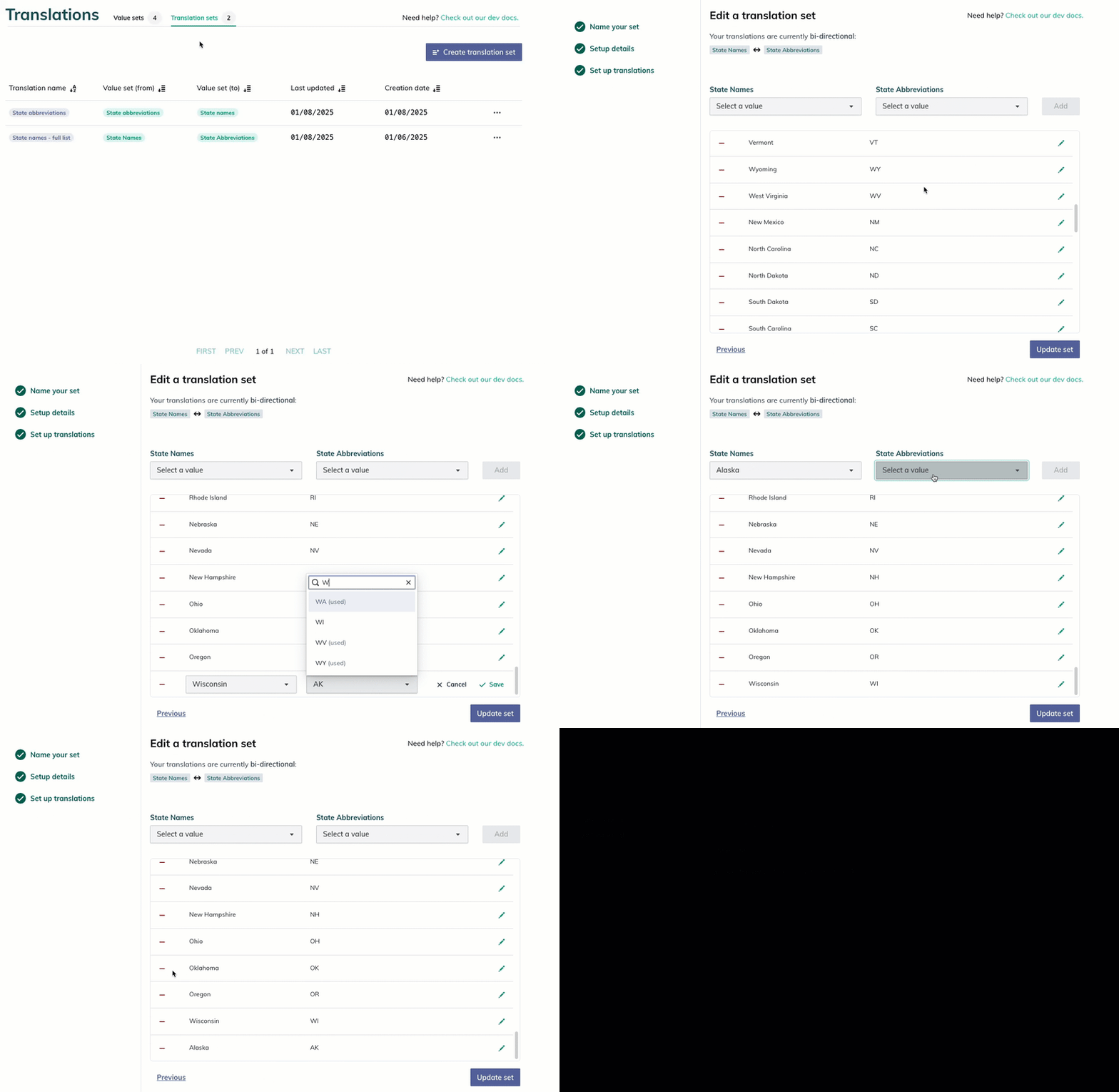
- The translation set wizard opens. Add, edit, or delete translations in the set.Edit values in a translationChanging directionality
- When you’re finished, click the Update set button.

Edit, add, or delete a translation Inactive value sets
- Select the Delete option.
- A confirmation modal appears. Click the Delete button.
- The translation set is successfully deleted.

Delete a translation set


To apply a translation set to your traffic, you must link it to the relevant log processing stage.
- Follow the instructions to view existing translation sets.
- Find the translation set you want to link. Click the three-dots icon.
- From the drop-down menu, click the View option.
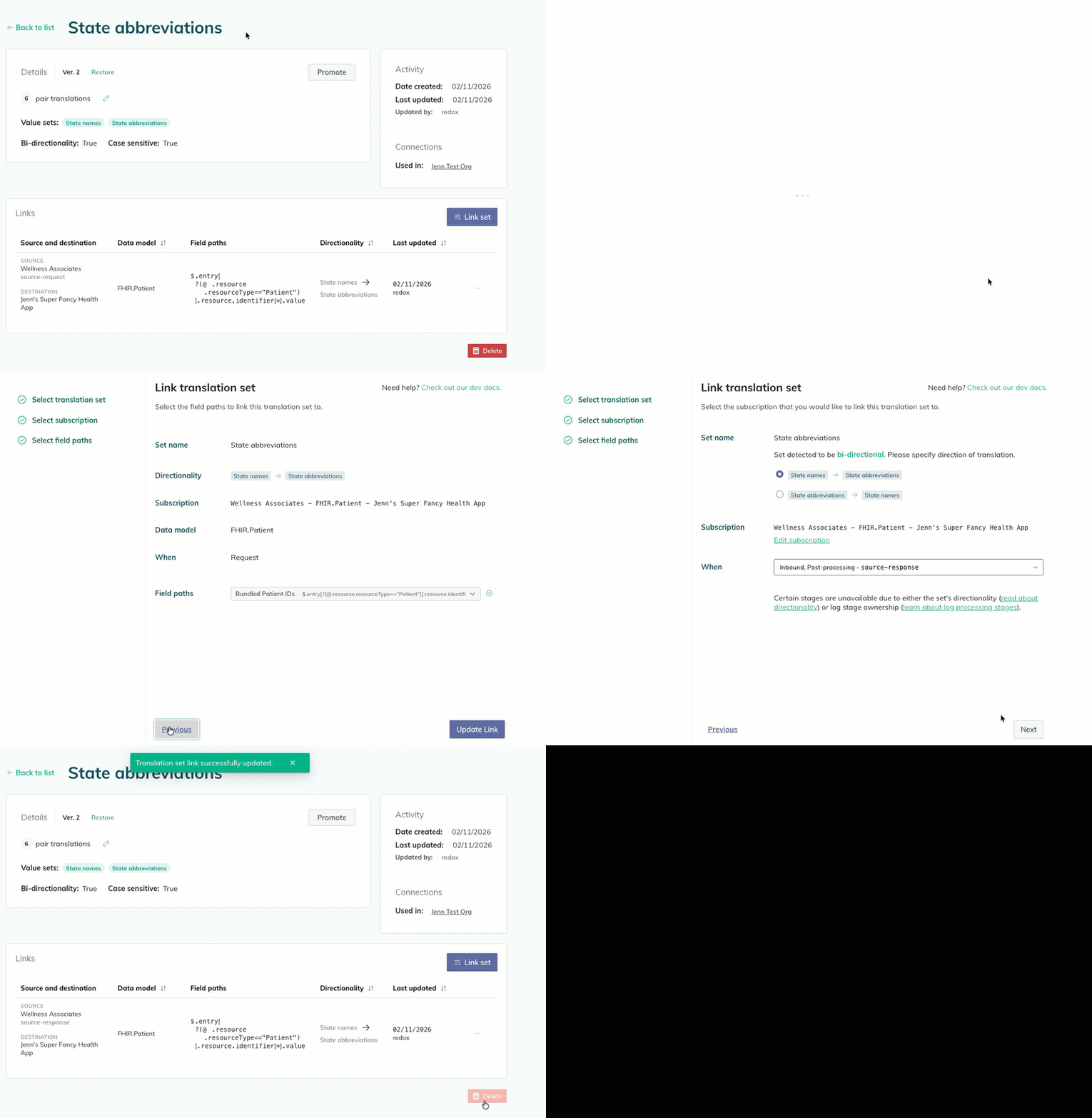
- The Settings page opens. Under the Links section, click the Link set button.

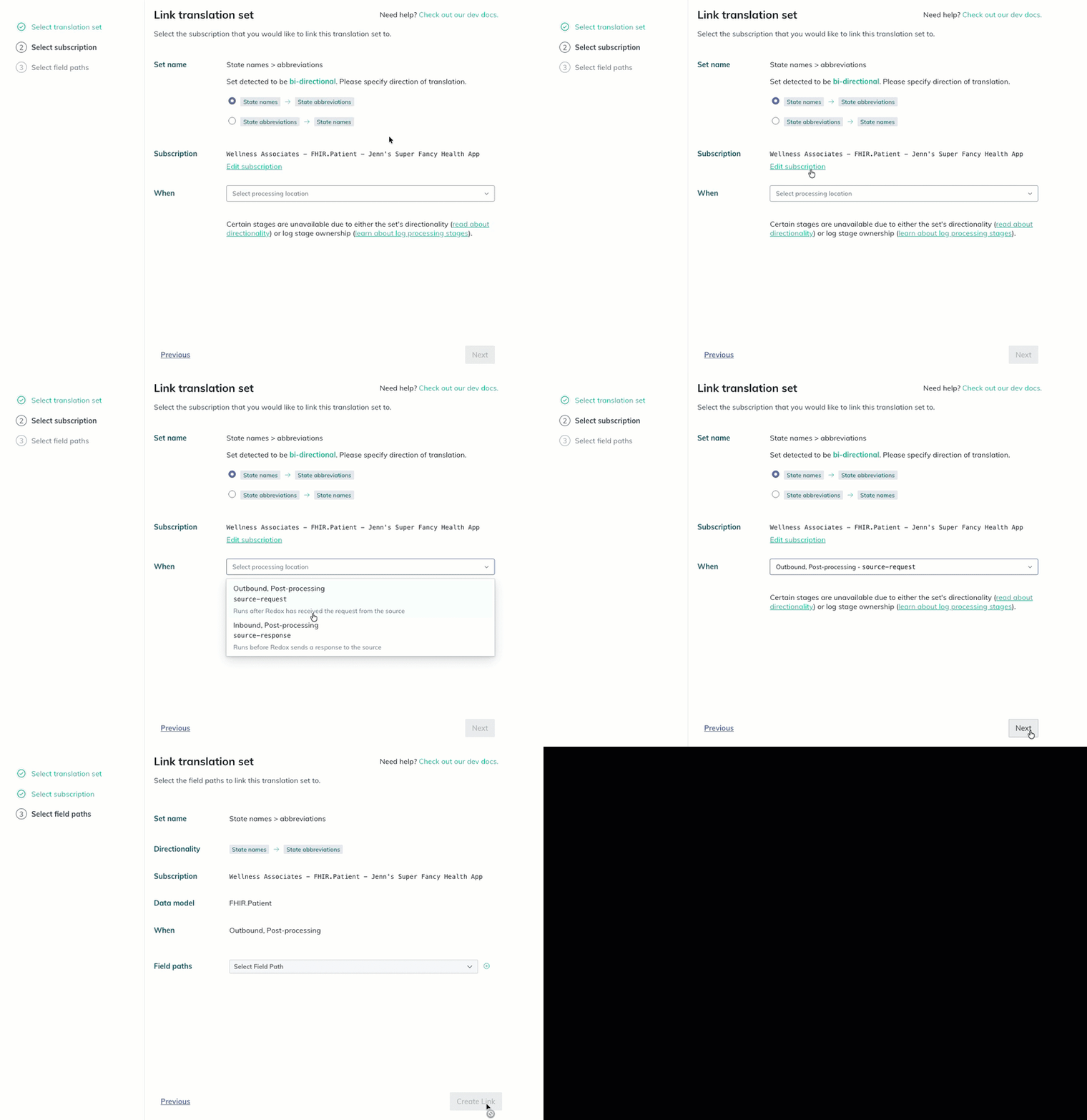
Link a translation set - Follow the instructions to complete each step of the translation set wizard.

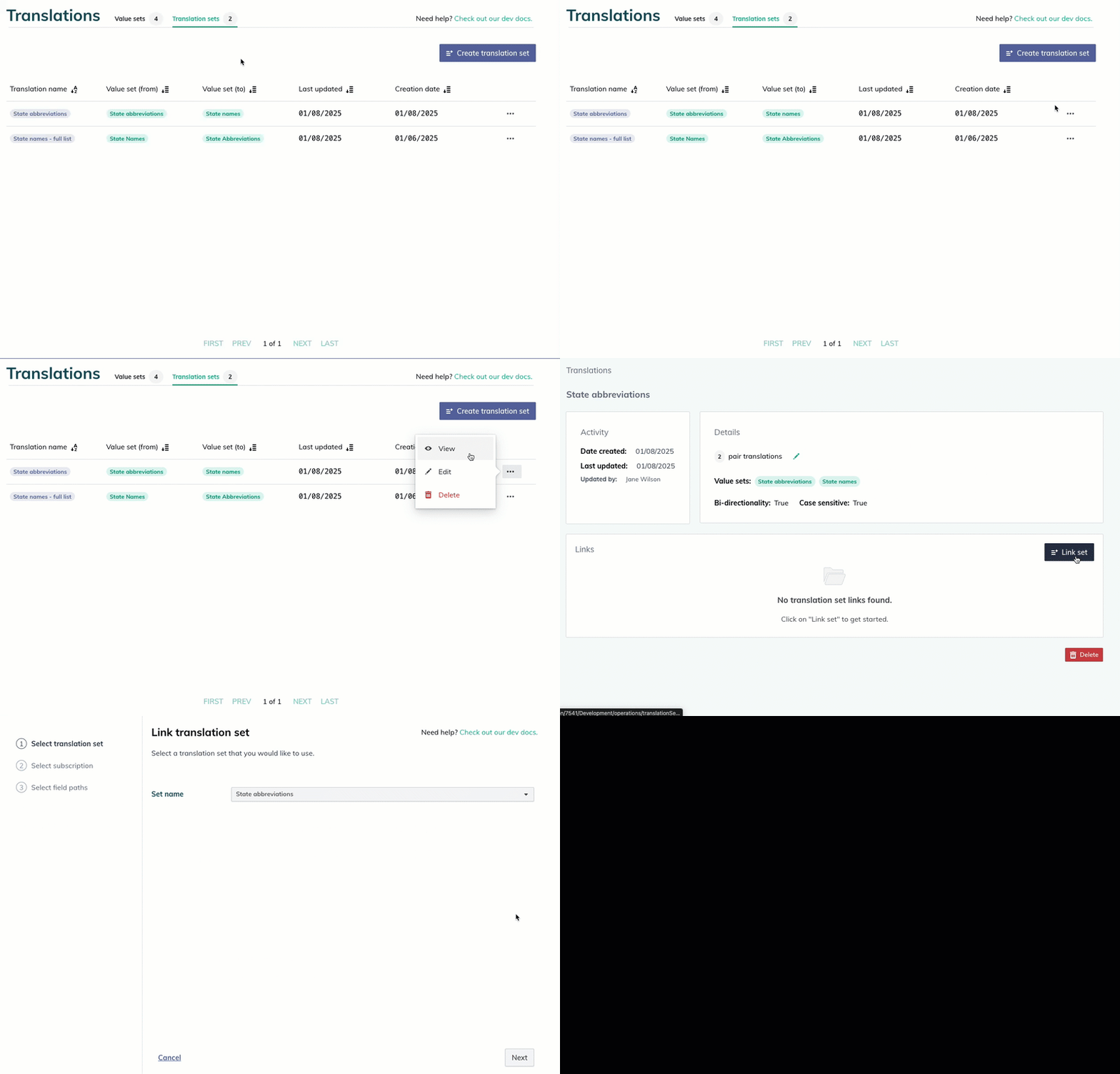
- The translation set wizard opens. The Set name drop-down automatically populates with the translation set you selected on the previous screen.
- If needed, select a different translation set from the drop-down.
- Click the Next button.
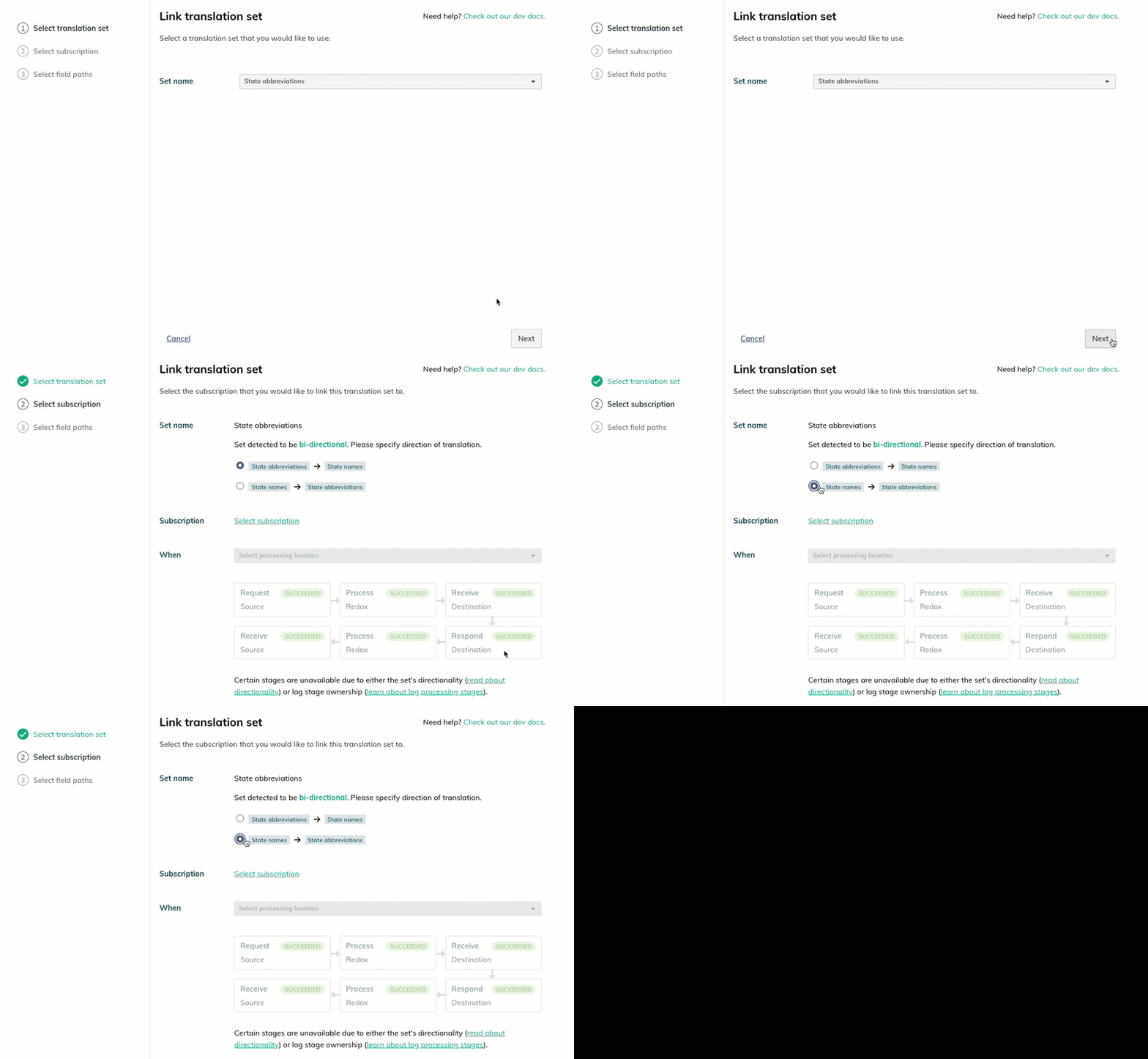
- For a bi-directional translation set, two options display for directionality. You must create two separate links—one for each direction—if you want a translation set to be applied in both directions. However, you can only create one link at a time. Select the radio button for the direction of this specific translation link.

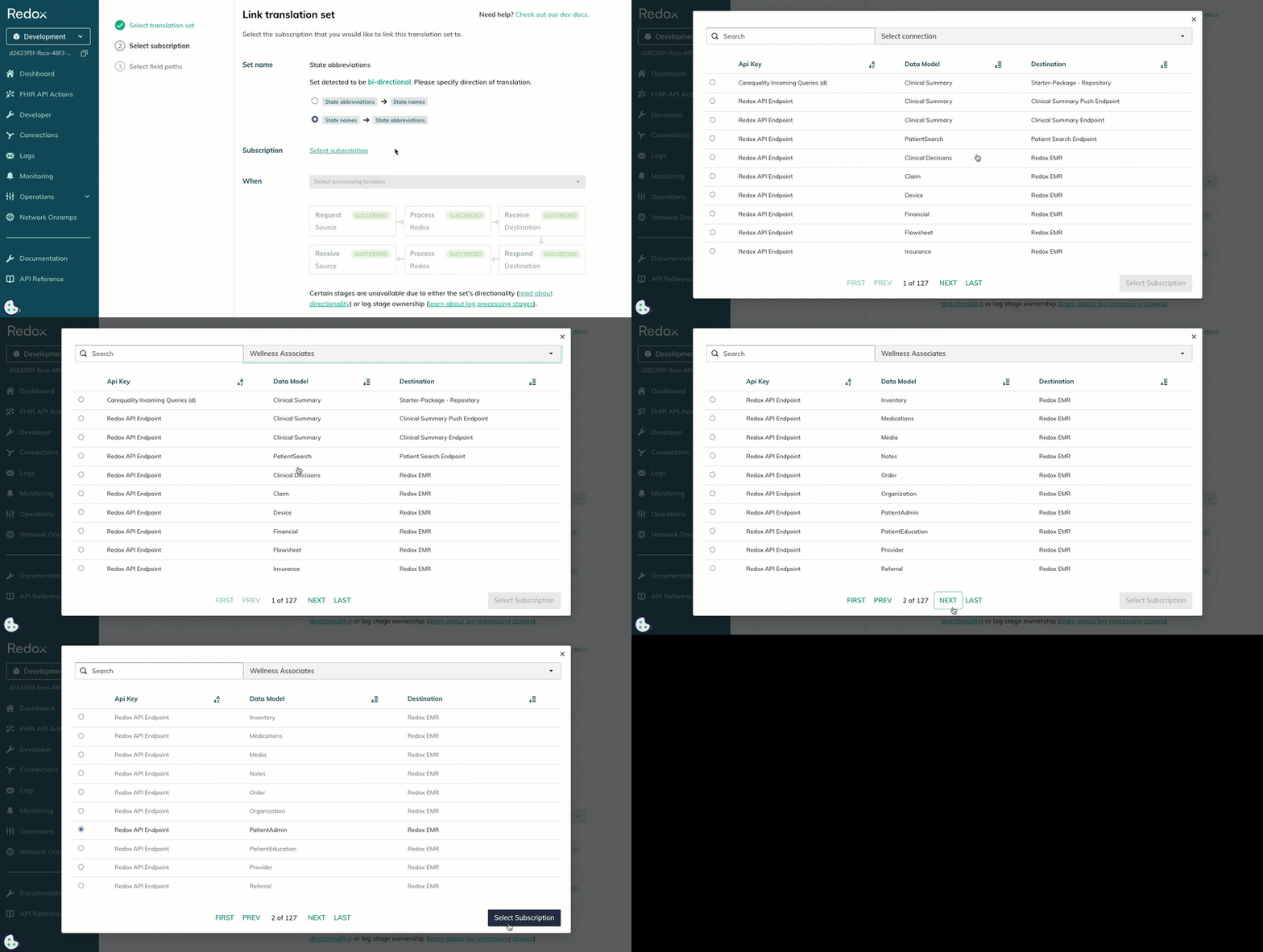
Choose the link's directionality Uni-directional sets - Click the Select subscription link.
- A modal opens with the subscriptions in your environment. Use the Search field or the Connection drop-down to narrow down the available options. Or, use the page options at the bottom of the modal to navigate through the pages.
- Select the radio button of the subscription you want to link a translation set to, then click the Select Subscription button.

Select a subscription - An edit option appears underneath the selected subscription. In the When drop-down, select the appropriate processing location to link the translation set to. Learn more about log processing stages.Links and processing stages
- Click the Next button.

Select log processing stage



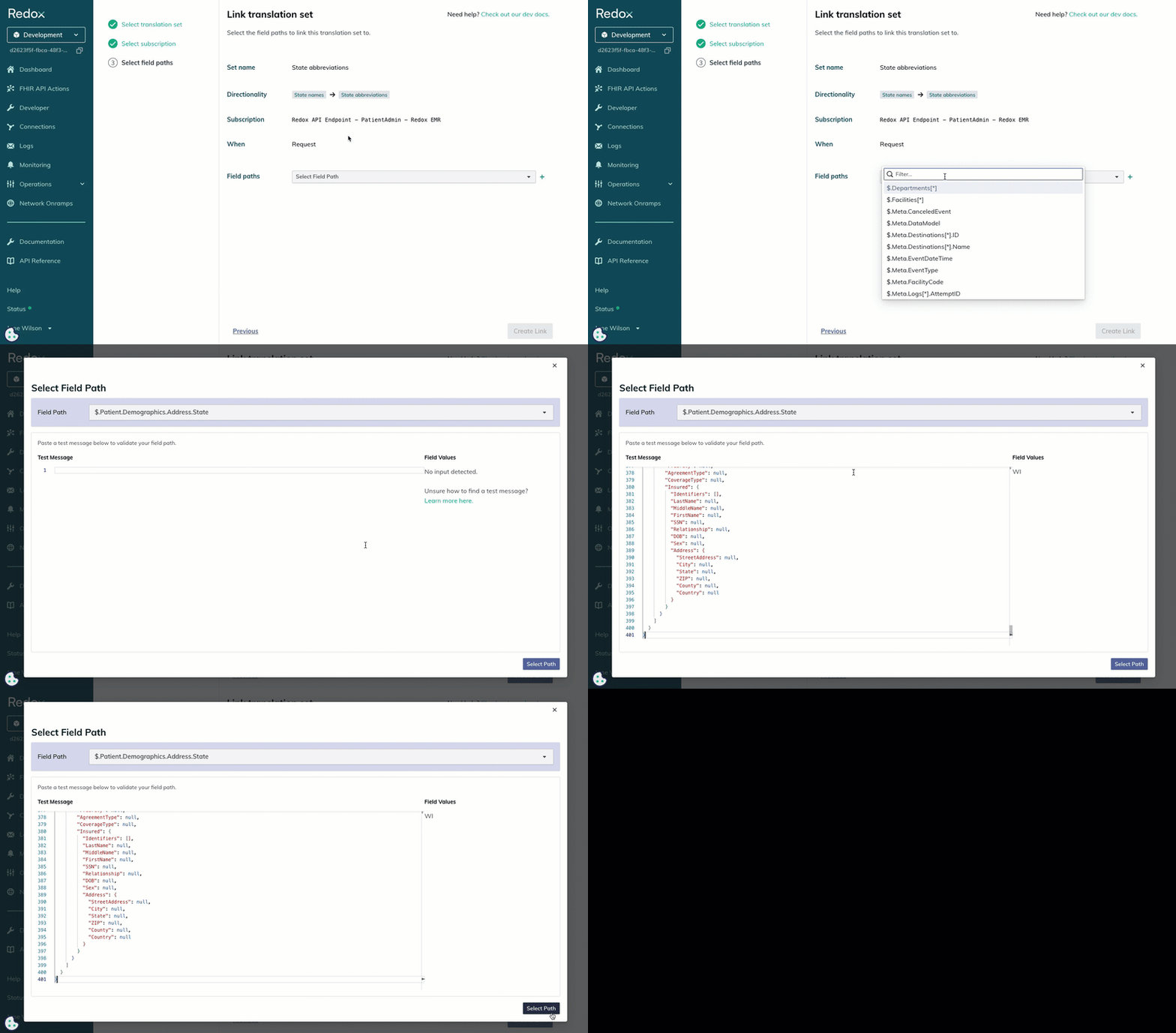
- From the Field Path drop-down, select the field you want to link the translation set to.
- A modal opens for testing the field path and value. You can change your selection by clicking the Field Path drop-down again to view a list of fields.
- Once you have the correct path, use the validation tools to test your choice. Or, if you don’t want to test, you can skip and proceed to the next step.
- Find a log payload for the subscription you want to translate. Learn more about searching for logs.
- Copy and paste the log payload into the Test Message section.
- On the right side of the modal, under Field Values, the value that displays is the one found at the field path you selected.No Redox validation
- Click the Select Path button on the bottom right of the modal.

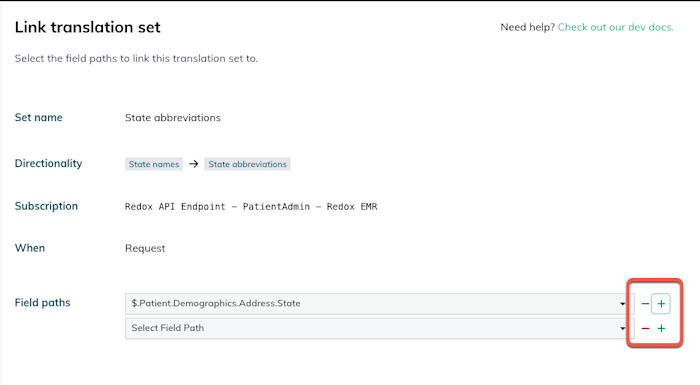
Select and test a field path - To add another field path, click the plus button to the right of the drop-down field. Repeat the field path steps for as many field paths you want to include in the translation set link. This is what allows a translation set to alter multiple values in one data payload at a time.

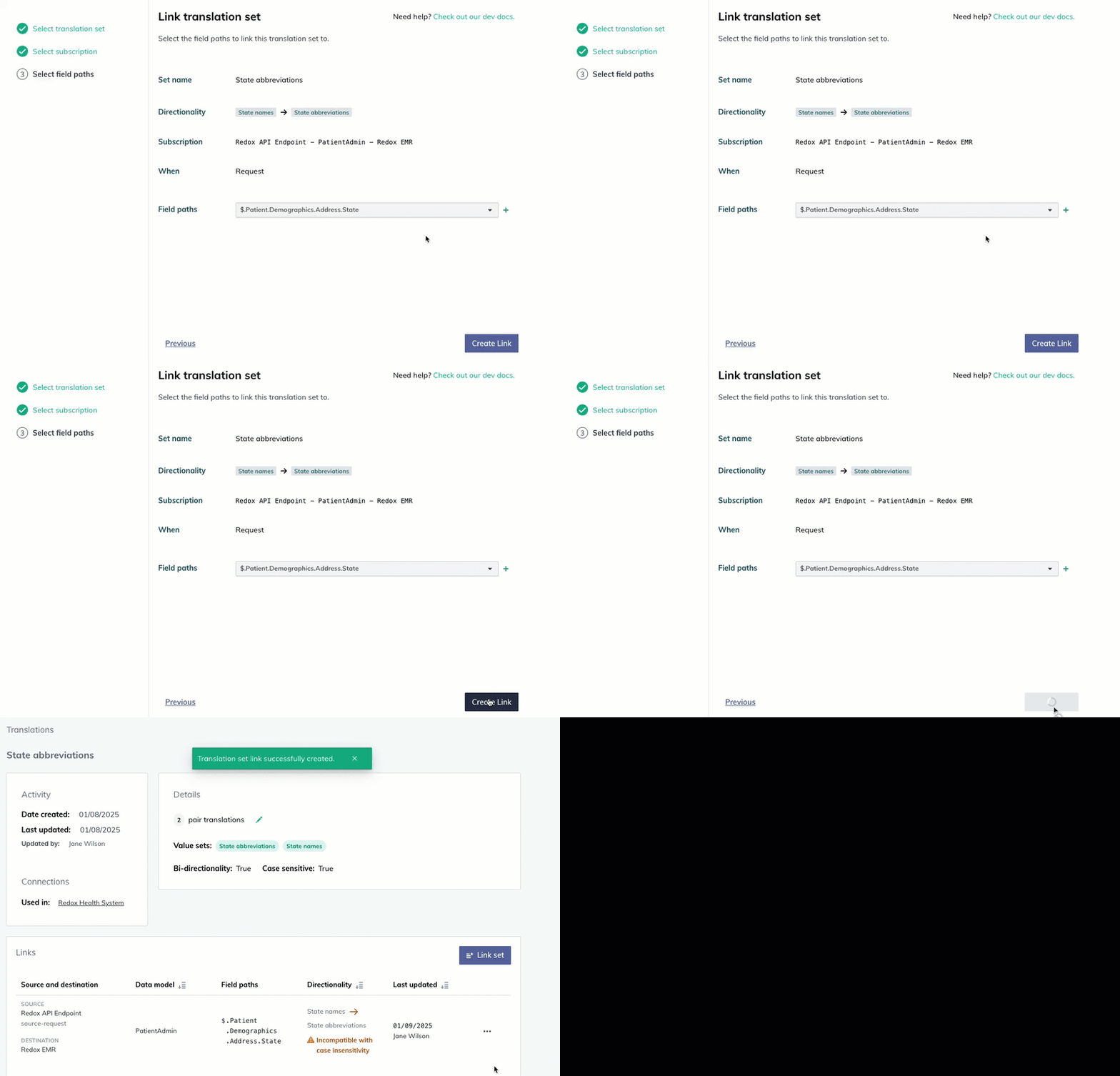
Add another field path - Review the information for the link. To edit any details, click the Previous button. Otherwise, click the Create Link button.
- The new link appears in the table and automatically applies to the linked subscription’s traffic.

Click the Create Link button Operation details in logs - You can link the same translation set multiple times. To create another link, click the Link set button to repeat the process.



- Follow the instructions to view existing translation sets.
- Find the translation set you want to link. Click the three-dots icon.
- From the drop-down menu, click the View option.
- The Settings page opens. Under the Links section, find the link you want to edit or delete. Click the three-dots icon.
- From the drop-down menu, click the Delete option or click the Edit option.Deleting a translation set link
- If you clicked the Edit button, the translation set wizard opens. Edit any of the details, then navigate through the wizard and click the Update Link button.

Edit a translation set link

After testing in staging, you can promote a translation set to production. Learn more about promoting assets.
- Log in to the Redox dashboard.
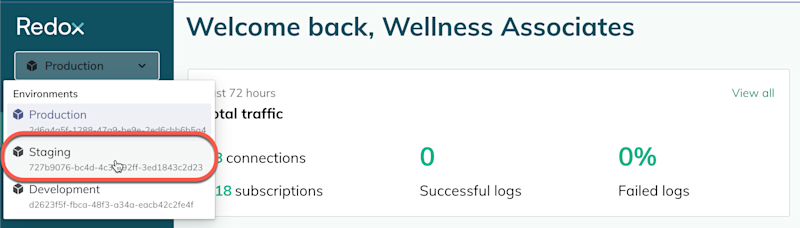
- From the Environments drop-down, select the Staging environment.

Select the staging environment - From the side nav menu, click the Operations drop-down.
- The Operations options expand. Click the Translations option.

Translations in the side nav - By default, the Value sets tab opens. Click on the Translation sets tab.
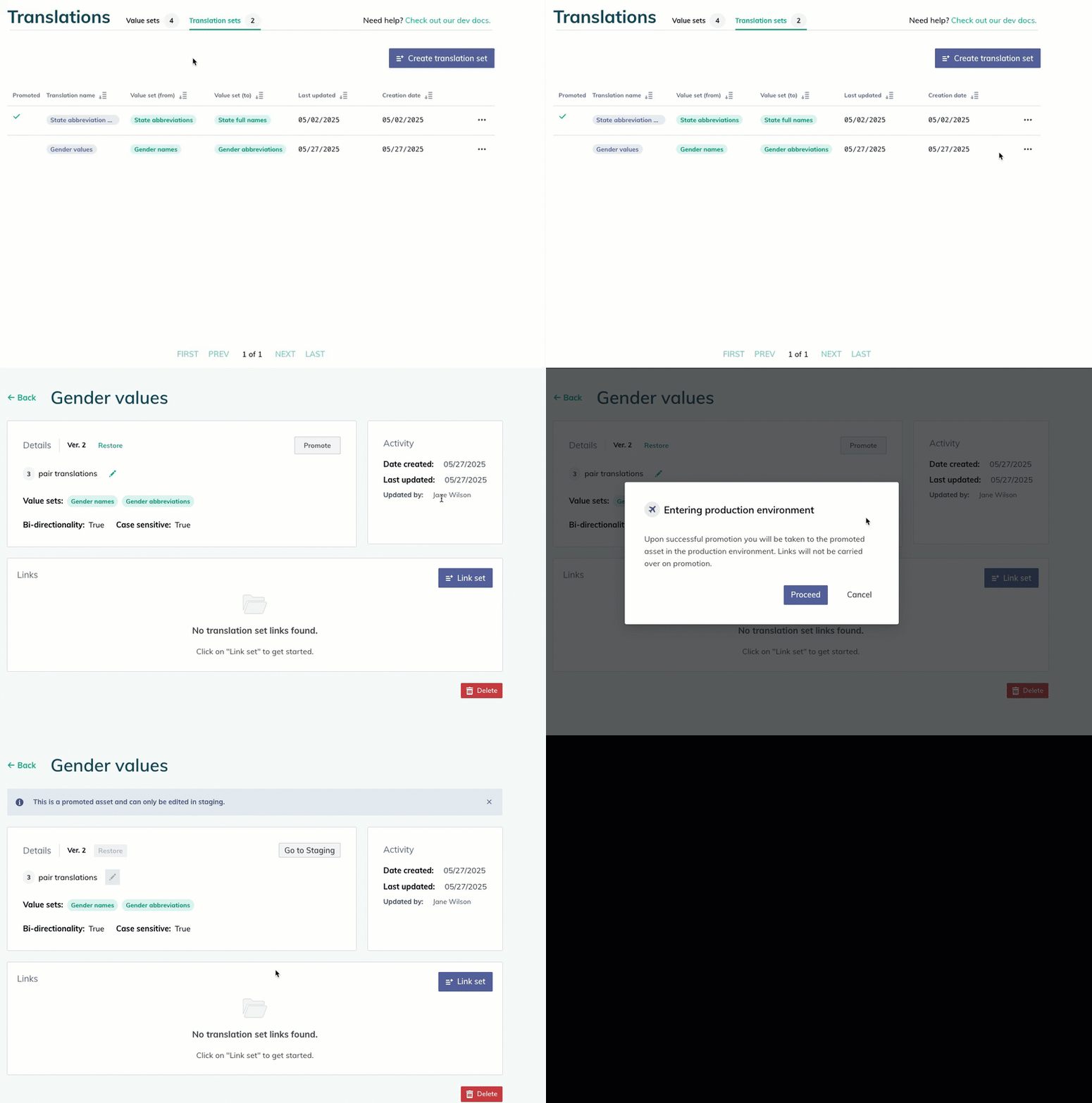
- The list of existing translation sets displays. Find the translation set you want to promote. Click the three-dots icon.
- From the drop-down menu, click the View option.
- The Settings page opens. Click the Promote button.
- A modal appears to confirm that you’re exiting staging and proceeding to production. Click the Proceed button. Otherwise, click the Cancel button to discard the promotion.

Promote a translation set to production - The Settings page in the production environment opens.
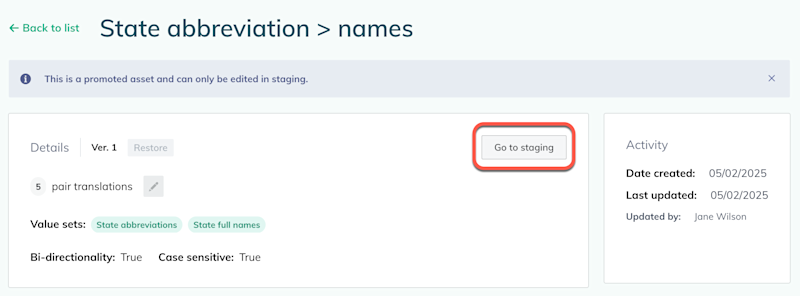
- To make any changes to the translation set, click the Go to Staging button.

Go to staging to edit - A modal appears to confirm that you want to switch environments. Click the Proceed button to continue.
- The translation set settings page opens in the staging environment. Follow the instructions to edit a translation set.
- Once changes are successfully made, re-promote the translation set to keep the assets in sync across environments.
- Next, add link(s) to subscriptions to apply the translation set in your production environment.



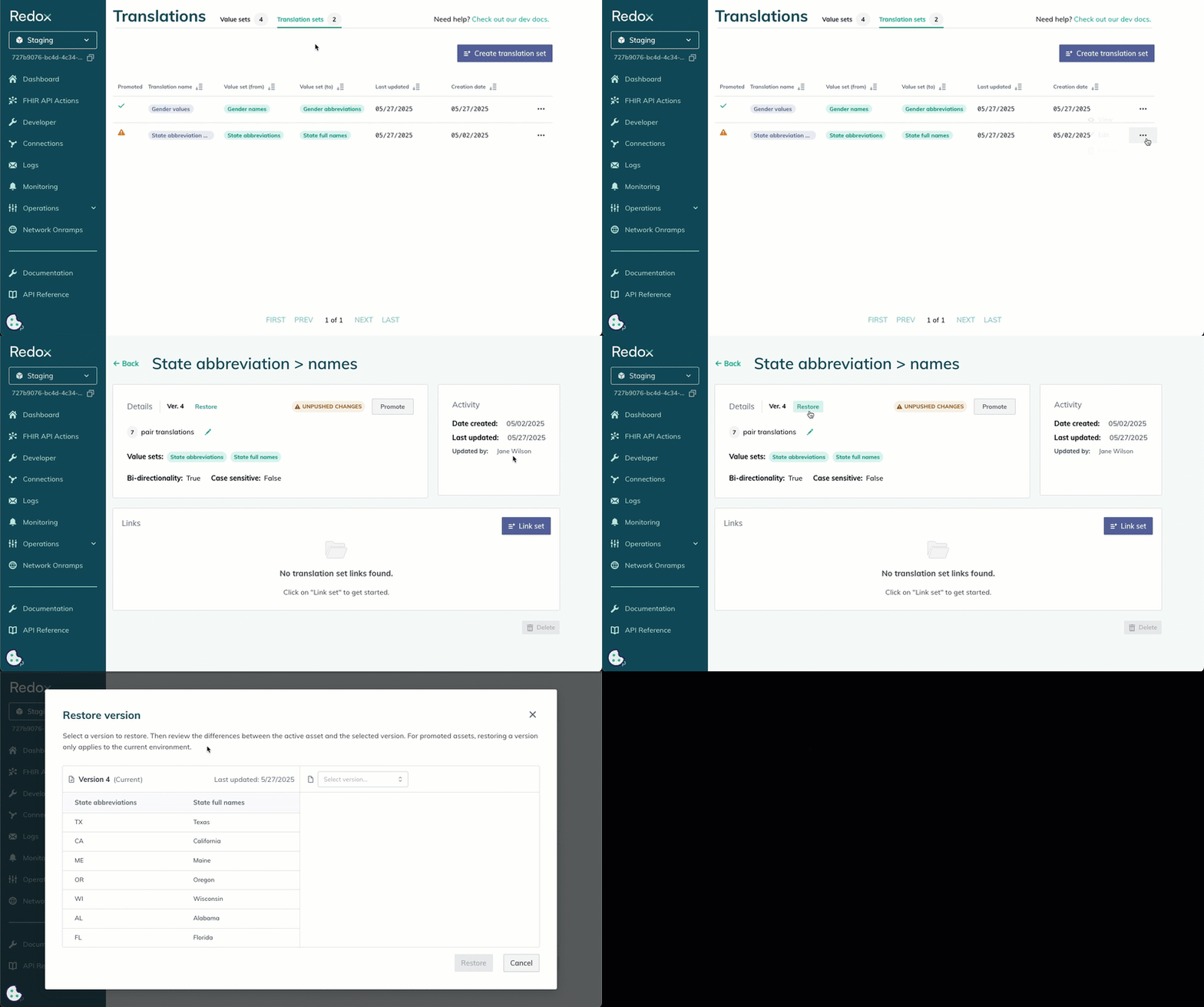
You can restore a version of a translation set that’s not currently in use. This can be helpful when troubleshooting to see where an error might have been introduced or to resolve an error by using a version that worked previously.
- Follow the instructions for viewing existing translation sets.
- From the list of existing translation sets, click on the translation set you want to restore.
- The Settings page opens. Click the Restore button.

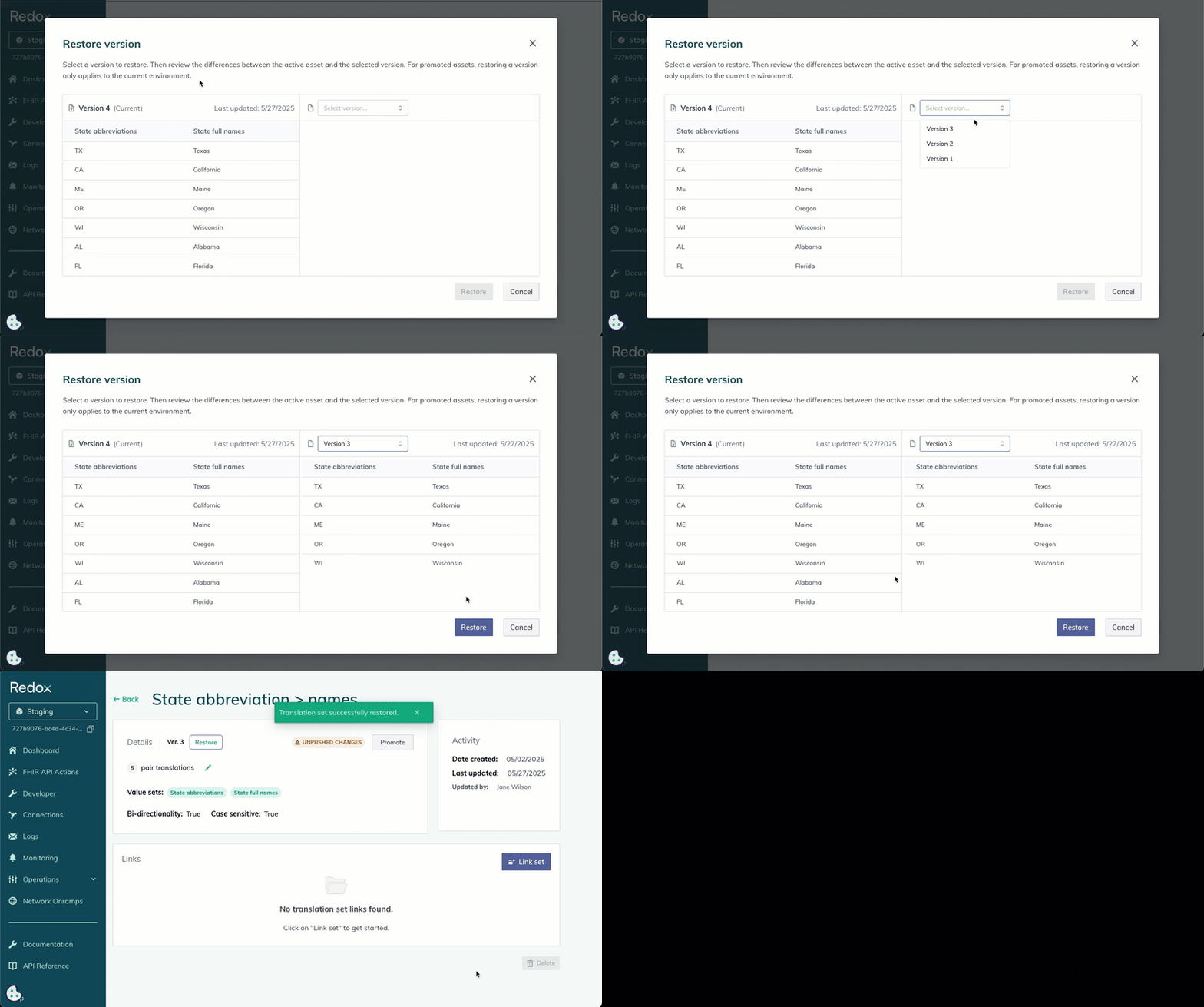
Click the Restore button - A modal appears to restore a version. From the drop-down, select a version to restore.Restore notes
- The diff view shows what’s different between the current and selected version. Review the differences, then click the Restore button.Versions after editing

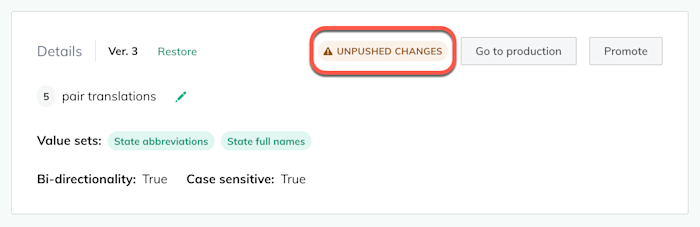
Compare translation set versions - For promoted assets, restoring a version only applies to the current environment. If you restore a version in staging, you might need to re-promote the asset if you want to apply it to production as well.What happens to value sets?

Unpushed changes 
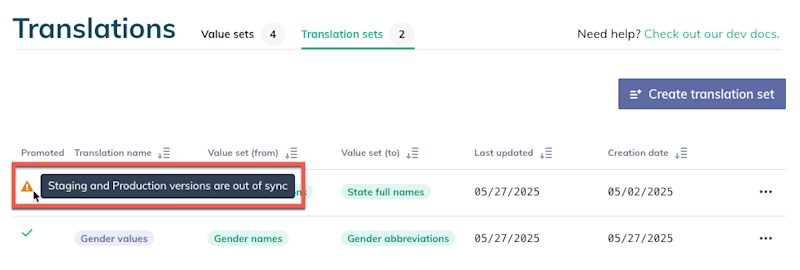
Out of sync versions