
Typically, a subscription is the bridge of data exchange between two parties (or two systems). However, you can choose to have a subscription with yourself, meaning your organization owns both the source and destination.
A one-party subscription is useful for populating cloud repositories. Learn more about Redox cloud connectivity.
To populate a cloud repository, you can create a cloud destination within your Redox organization, then set up a subscription from a source you own. Learn how to create a destination.
You can view and manage your connections and related subscriptions on the Connections page of the Redox dashboard.

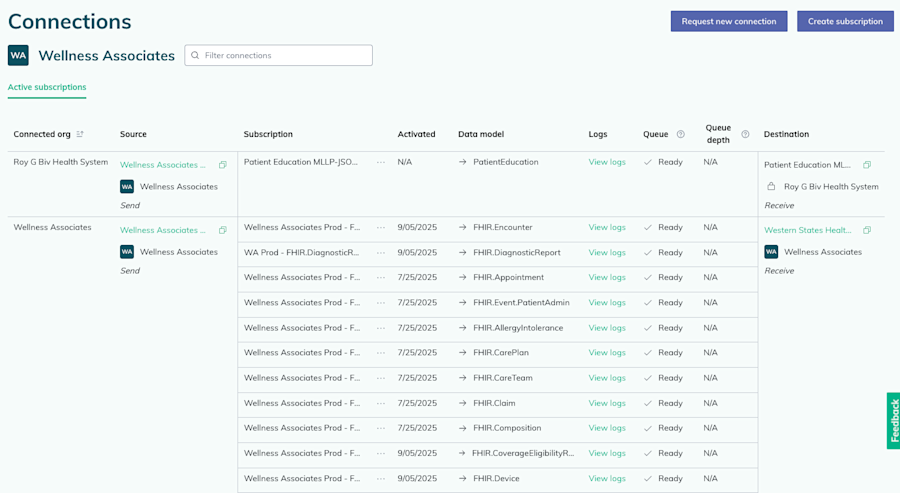
Each row of the table represents an active subscription. Subscriptions are grouped by connection (i.e., connected org), then source, then destination. Learn how to create a subscription.
To filter the list of subscriptions, you can enter any value to search and filter by. For example, to search for active subscriptions, you can enter “Active” in the filter field. Then, the table filters to only subscriptions with an Active queue status.
Review the details for each displayed subscription:
Subscription details | Notes |
|---|---|
Connected org | The organization name of the connection. |
Source | The name of the source associated with the subscription. Hover over the copy icon to view or copy the source ID. Users assigned to an engineer role can click the source name to open the source wizard and edit any source settings. Learn more about roles. |
Subscription | The name of the subscription. This name can be edited. Users assigned to an engineer role can click the three-dots icon to open the Settings page. The subscription’s details are listed on the Settings page, along with options to edit the subscription name, configure filters, and delete the subscription. See these how-tos for more details: a) define filters or b) delete a subscription. |
Activated | The date the subscription went live. |
Data model | The Redox FHIR® or Redox data model that determines the shape of the data being exchanged. |
Logs | A link to the subscription’s related logs. The Logs page will automatically open with the source, destination, and data model filters already populated. |
Queue | The current status of the subscription queue. Subscriptions with async traffic could have any of these three statuses: Active: The queue is running and traffic is flowing through the subscription queue. Paused: A Redoxer has manually paused the queue. Talk to your Technical Account Manager for more details. Ready: The queue is ready for traffic, but nothing is flowing. Once traffic starts to flow after go-live, this changes to Active. |
Queue depth | The number of async messages waiting to be processed in the subscription queue. Most active, healthy async subscriptions have a queue depth close to 0. Queue depth might be higher if: a) Queue is retrying a failed transaction or has been manually paused. Learn more about when Redox pauses a queue. b) Transaction volume is higher than usual (e.g., backfilling historical data). c) Traffic includes SFTP file transfers. If the queue depth doesn’t drain and is continuously increasing over a 24-hour period, submit a request to our Help Center. You currently can’t filter the table by the values in the Queue depth column. |
Destination | The name of the destination associated with the subscription. Hover over the copy icon to view or copy the destination ID. Users assigned to an engineer role can click the destination name to open the destination wizard and edit any destination settings. Learn more about roles. |