After creating a Redox dashboard account, you have to create a Redox organization record to associate with your account. Learn more about Redox organizations.
- Any user can create a Redox organization and become its owner. But a user must be assigned to an owner role to update the organization profile. Learn about user roles.
- To join an existing organization, an organization owner must invite you. When you receive an email invite, click the link to confirm your email address and join the organization. Learn how to add a user.
- If you want a Redox organization to move from a free account to preproduction, you must be in the Redox onboarding process. Talk to your sales rep with any questions.
- Log in to the dashboard.
- Click your username at the bottom of the navigation menu.
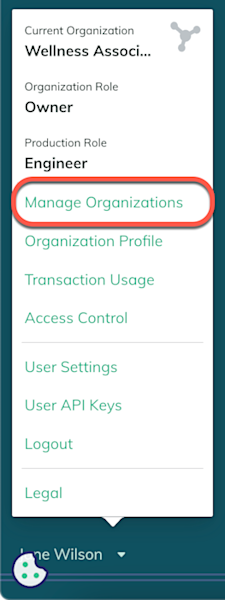
- From the user menu, select the Manage Organizations option.

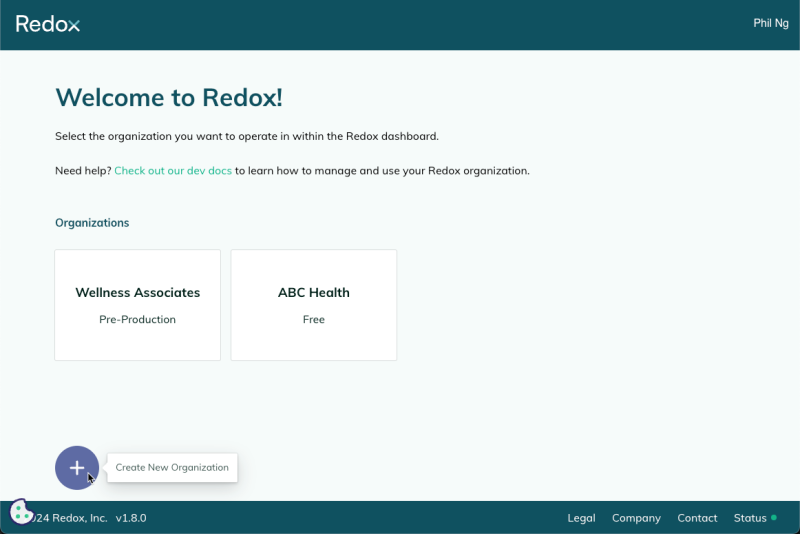
Manage Organizations option - The Organizations page opens. To create a new organization, click the Create New Organization button.

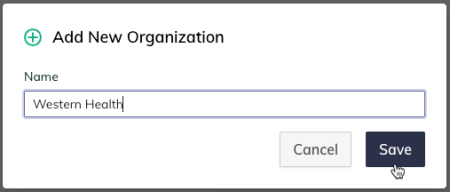
Click the Create New Organization button - The Add New Organization modal opens. Enter an organization name, then click the Save button.

Enter the organization name - The organization Overview page opens. When you create an organization, by default you’re assigned to be the organization owner. Learn more about organization roles.
- Next, fill out your organization profile.



We use the details in your organization profile for your company’s listing in our connected solutions. Make sure you keep these details up-to-date. View our connected solutions.
- Log in to the dashboard.
- Click your username at the bottom of the navigation menu.
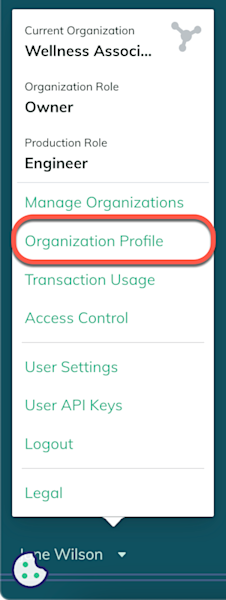
- From the user menu, select the Organization Profile option.

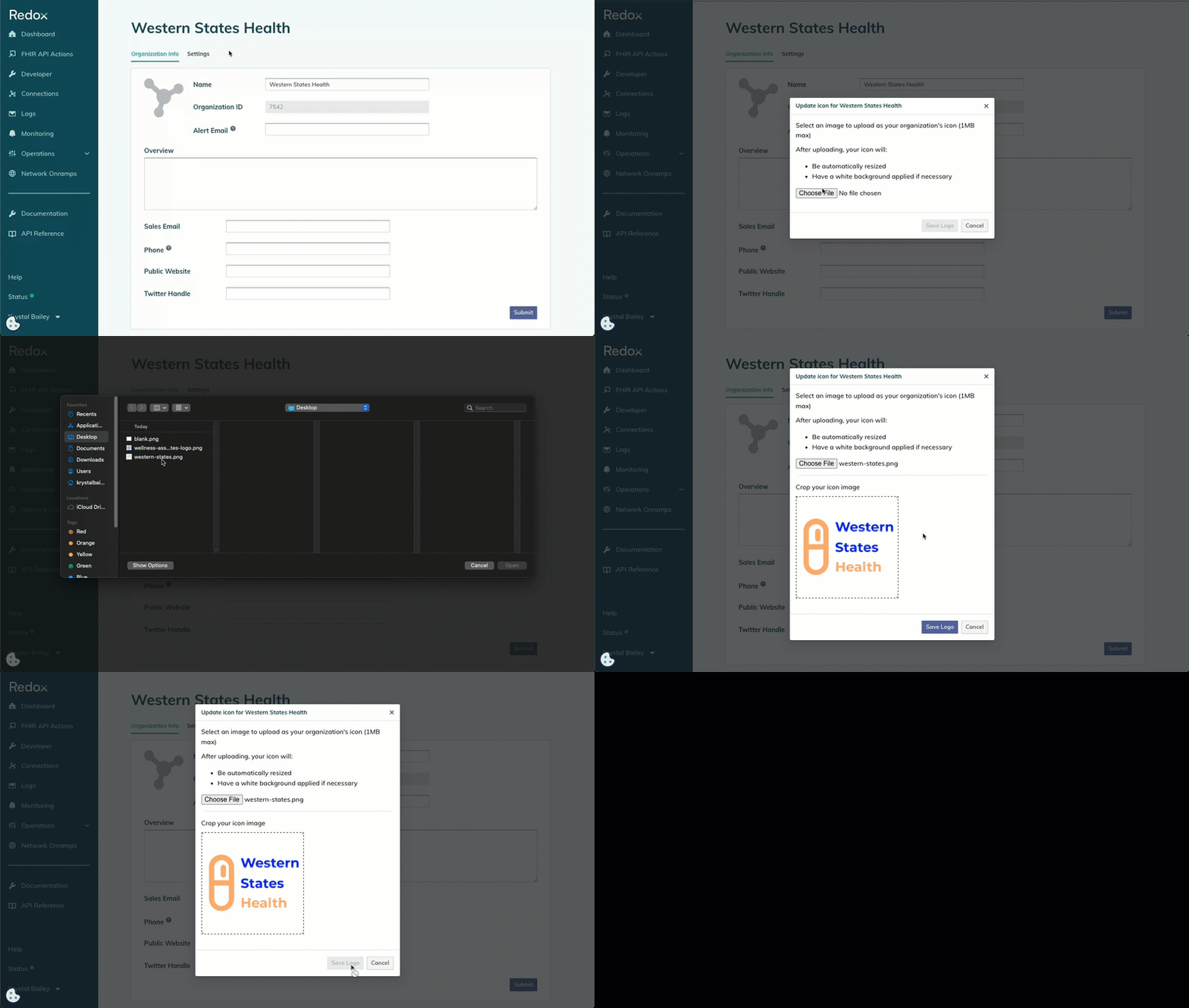
Organization Profile option of the user menu - The Organization Info tab opens. Upload your company logo.
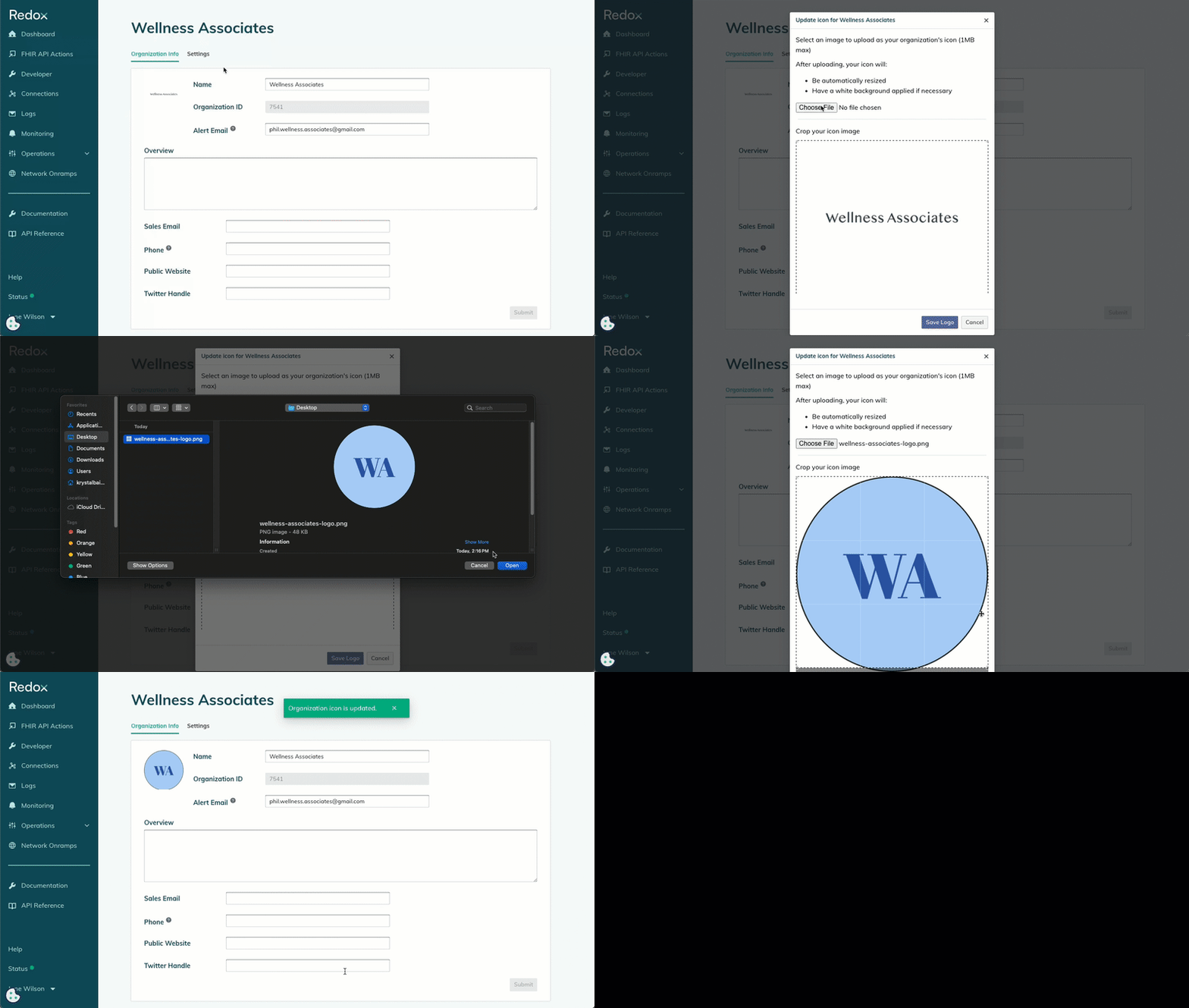
- Click the icon thumbnail. This will either be an empty icon or a previously loaded logo if you’re editing.
- The file explorer opens. Select the image file with your company logo.
- Click the Save Logo button.

Upload your company logo 
Re-upload a logo
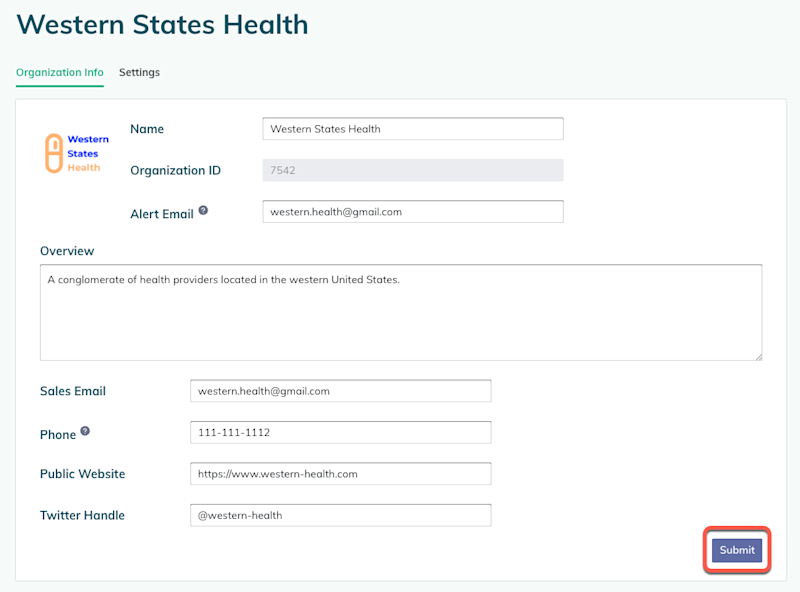
- Fill out the communication details for your organization:
- Organization name: Keep or edit the organization name that was chosen when you created the organization.
- Organization ID: This can’t be edited, since it’s an ID automatically assigned to your organization by Redox.
- Alert email address: Enter the email address we should send system alerts to. Learn more about system alerts.
- Company overview: Describe the purpose or mission of your company.
- Sales email: Enter the email address for the point of contact who should receive sales communications.
- Phone: Enter the phone number for the point of contact for Redox to reach out to.
- Public website: Enter your company’s web address.
- Twitter (X) handle: Enter your company’s handle for a Twitter (X) account.
- Once you’ve entered or edited the organization details, click the Submit button.

Click the Submit button - Next, you might want to start adding users. Learn how to add a user to a Redox organization.Membership limit