You can delete duplicate or unnecessary Redox organizations before go-live from the Redox dashboard. Learn more about Redox organizations.
- A user must be assigned to an organization owner role to delete an organization. Learn more about user roles.
- Log into a pre-production Redox organization. Self-service deletion is disabled after go-live (i.e., production organizations). Talk to your Technical Account Manager to delete production organizations.
- Be prepared to lose all the organization’s assets. Deleting an organization is permanent and deletes all associated environments, sources, destinations, and users.
- Log in to the dashboard.
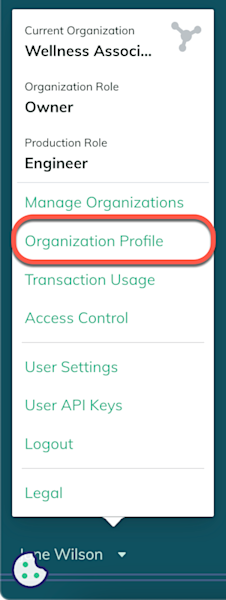
- Click your username at the bottom of the navigation menu.
- From the user menu, select the Organization Profile option.

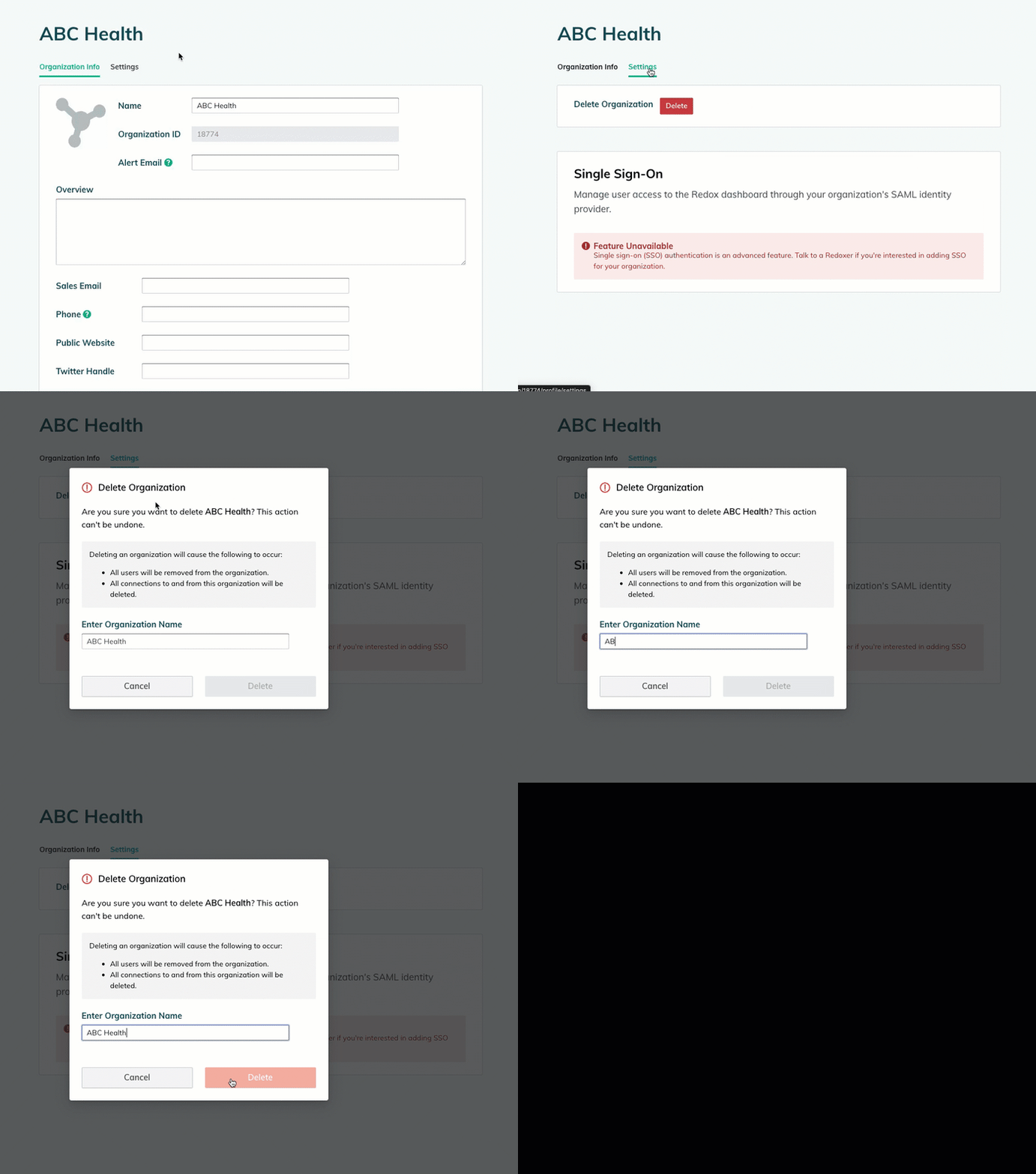
Organization Profile option of the user menu - The Organization Info tab opens. Verify that this is the correct organization to delete. If you’re in the wrong organization, switch to the correct one before proceeding.
- Click the Settings tab.
- On the Settings tab, click the Delete button.Disabled Delete button
- A confirmation modal appears. Type the exact organization name in the field to confirm, then click the Delete button.

Delete an organization