
You must set up standard endpoint(s) and/or cloud destination(s) to receive data from Redox. Learn more about receiving data.
- A user must be assigned to an engineer role to manage destinations. Learn about user roles.
- For cloud destinations, decide on which supported cloud product(s) you’ll use. See our supported products.
- For standard URL endpoints, have your HTTPS endpoint URL ready.
- (Optional) Create an auth credential or verification token to authenticate incoming data. Otherwise, you can do this in the destination wizard.
- To delete a destination, you must be logged into a development or staging environment. Production destinations can’t be deleted without a Redoxer.
Follow these steps to view any existing destinations, or endpoints.
- Log in to the Redox dashboard.
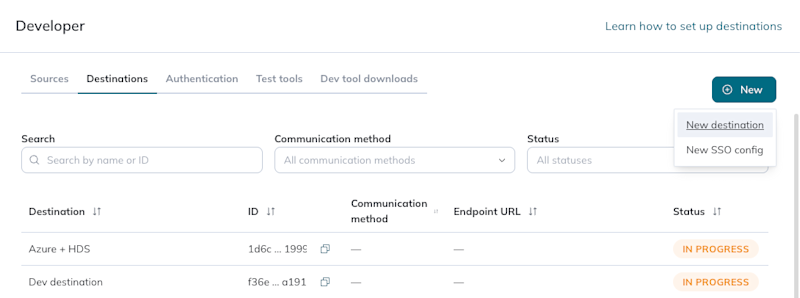
- From the navigation menu, click the Developer page.
- By default, the Sources tab opens. Click the Destinations tab to view any configured destinations.
- To view a specific destination’s configuration details, click the destination row in the table.
On the Destinations tab, click the New button > New destination option to open the destination wizard. The instructions below take you through each step of the destination wizard.

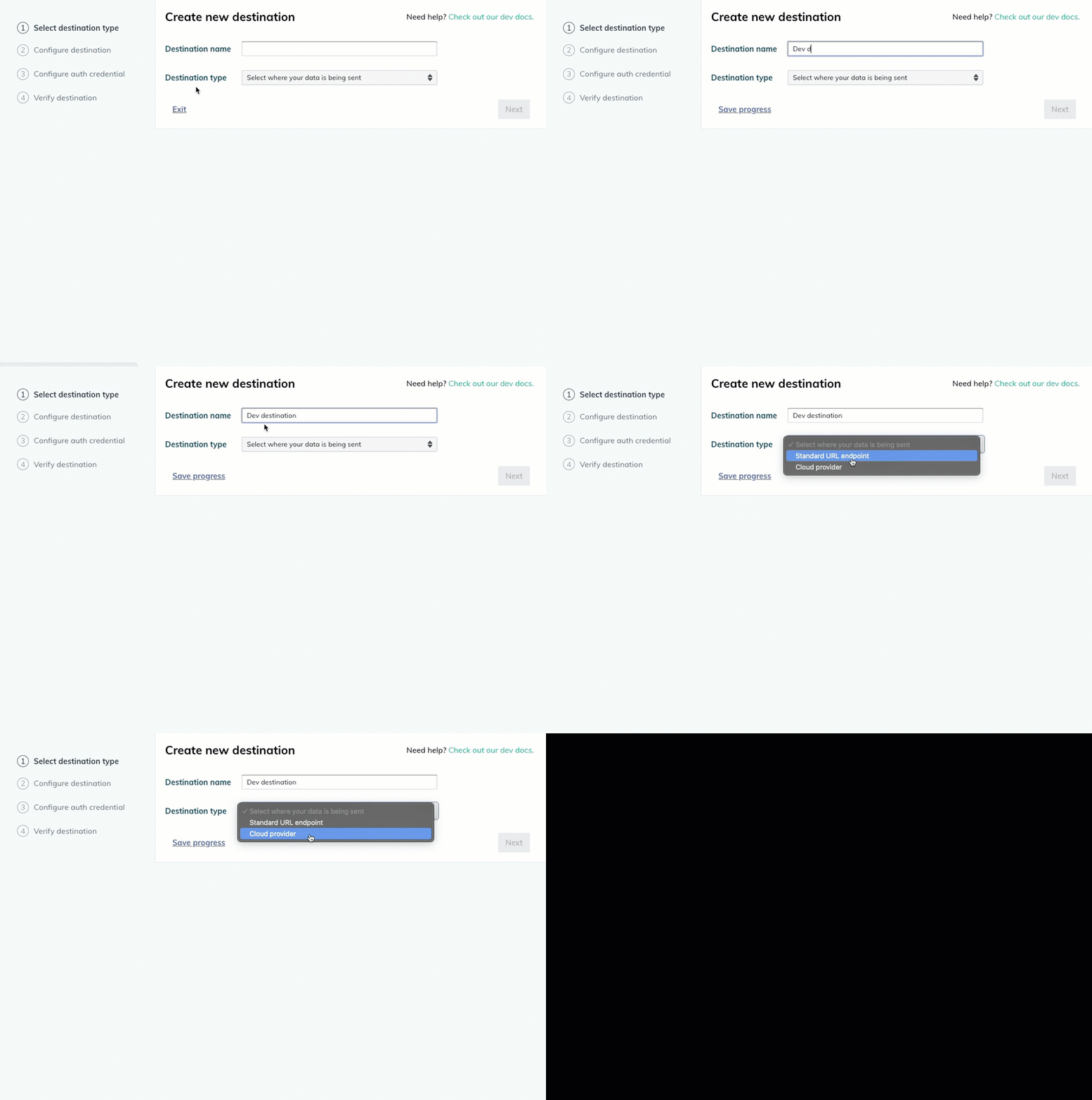
Save progress and exit
- Enter a human-readable name for the destination. This will be the display name on the Destinations tab.Destination names

Create a new destination - From the Destination type drop-down field, select whether your destination will be a standard URL endpoint or cloud type.
- For standard URL endpoints, click the Next button to proceed to Step 2: Configure destination.
- For cloud types, these drop-down fields appear:
- Cloud provider: Select the relevant cloud provider for your setup (i.e., AWS, GCP, or Microsoft Azure).
- Product type: Select the cloud product you’re using with the selected cloud provider.
- Click the Next button to proceed to Step 2: Configure destination.Can’t edit destination types

Create a cloud destination



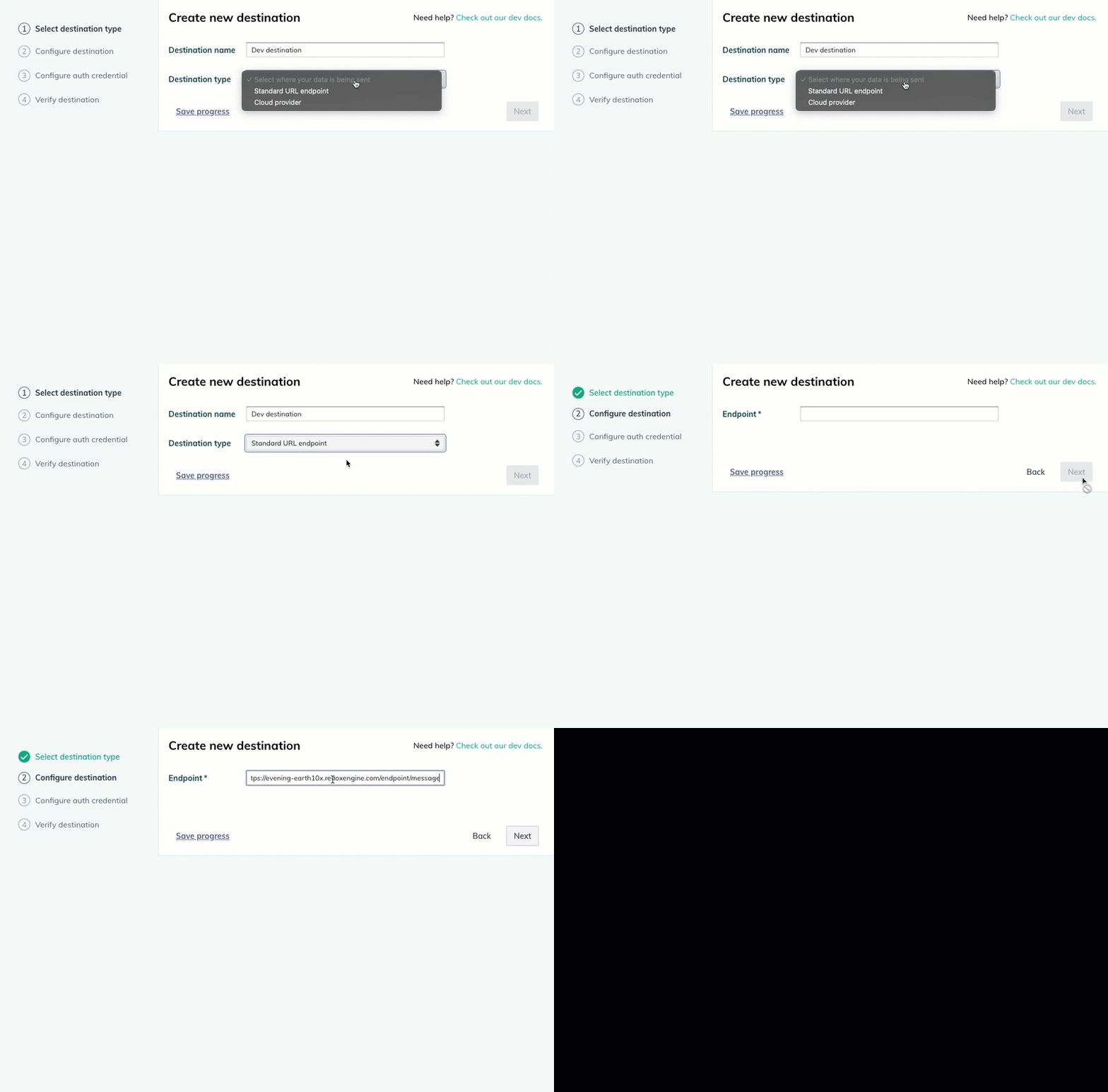
- In the Endpoint field, enter the URL endpoint. This must be an HTTPS URL.
- Click the Next button to proceed to Step 3: Configure auth credential.

Enter the endpoint URL

- Depending on your selected cloud provider and product type, the set of configuration fields will be different. Check out the relevant how-to for your cloud setup. You’ll find details about auth credentials in each of these how-tos as well.
- Click the Next button, then proceed to Step 4: Verify destination.
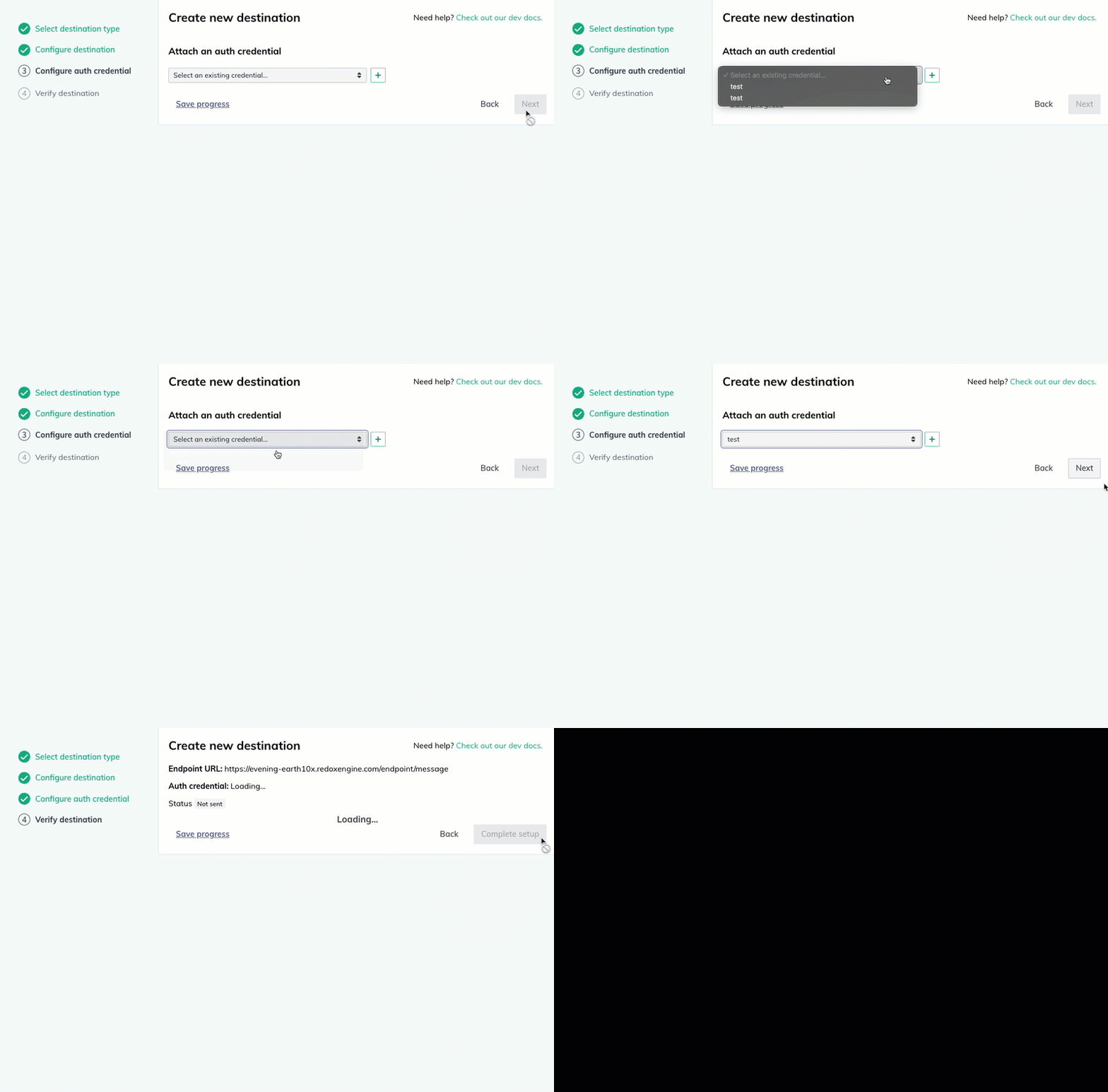
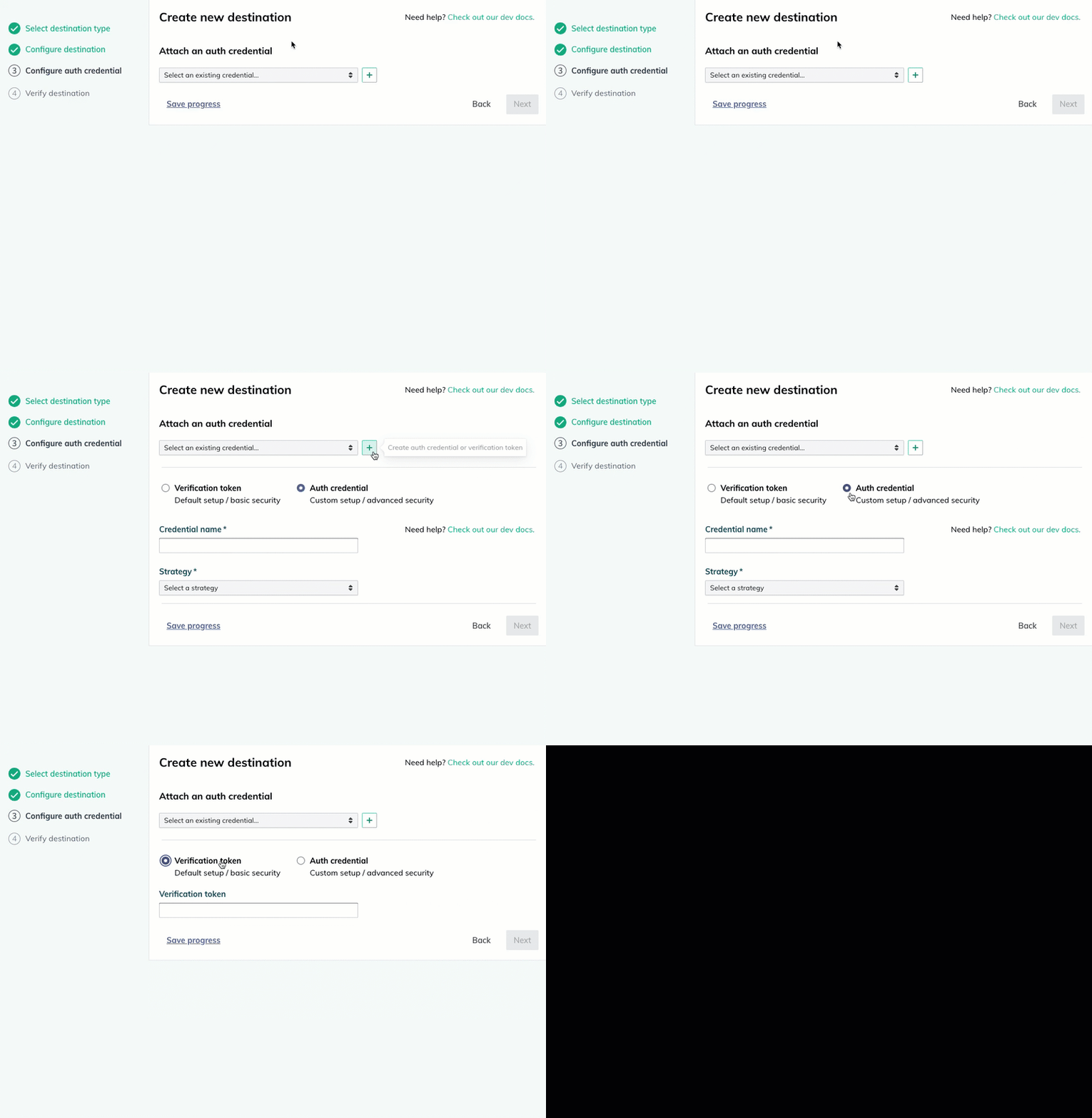
The Attach an auth credential drop-down appears.
- Select the auth credential from the drop-down list.
- Click the Next button to proceed to Step 4: Verify destination.

Attach an existing auth credential
- Click the plus (+) icon to the right of the field.

Use new auth credential or verification token - Radio options appear. Select the Verification token or Auth credential radio button, depending on which authentication method you want to use for your destination.
- Verification token: Enter the verification token in the blank field.Verification token
- Auth credential: Enter a unique, human-readable name, then fill out the rest of the configuration depending on your selected auth strategy. Learn how to create an auth credential.
- Click the Next button to proceed to Step 4: Verify destination.

Skip verification

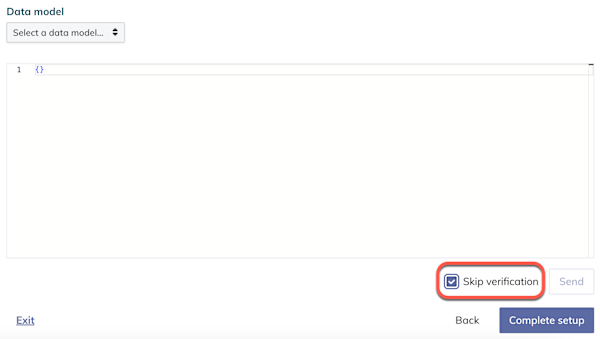
- In the Data Model drop-down, select a test data model or FHIR® message you support and plan to receive.FHIR data model format
- Click the Send button. This triggers a sample message to verify that your destination can receive the expected data from Redox.
- If the test message is successful, you should receive a 200 response. Click the Complete setup button to close the wizard. If the test message isn’t successful, you won’t be able to finish the setup of development or staging destinations. Make sure your endpoint URL adheres to Redox requirements, then try again. Otherwise, check out verification troubleshooting tips.Endpoint requirements
You can edit some destination details, as well as the preferred authentication method for the destination.
Can’t edit destination types
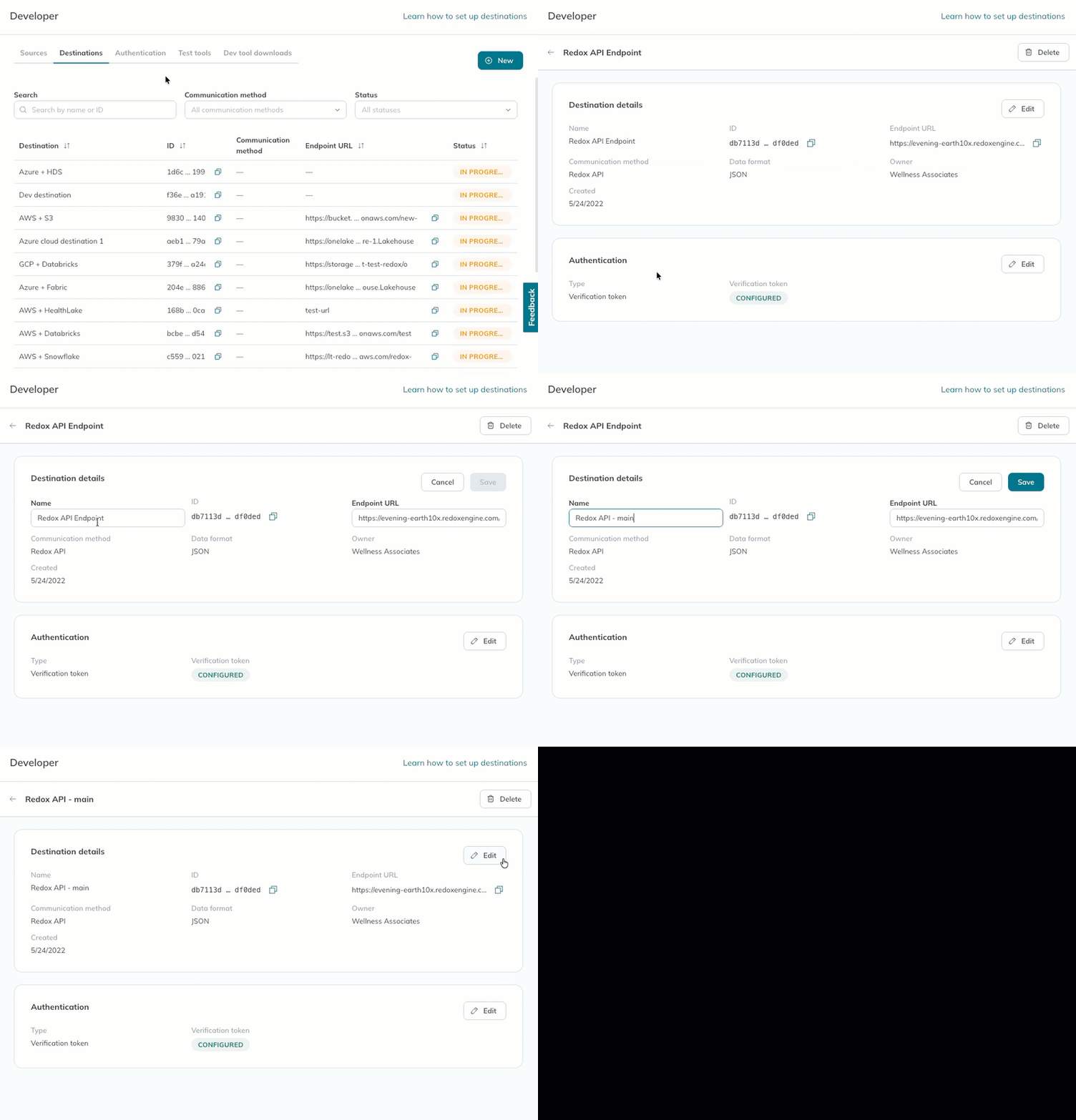
- Follow the steps to view destinations.
- Find the destination you want to edit and click anywhere in its row.
- The Details page opens. Under the Destination details section, click the Edit button.
- Depending on the destination type, different fields become editable. Make any changes, then click the Save button.

Edit a destination

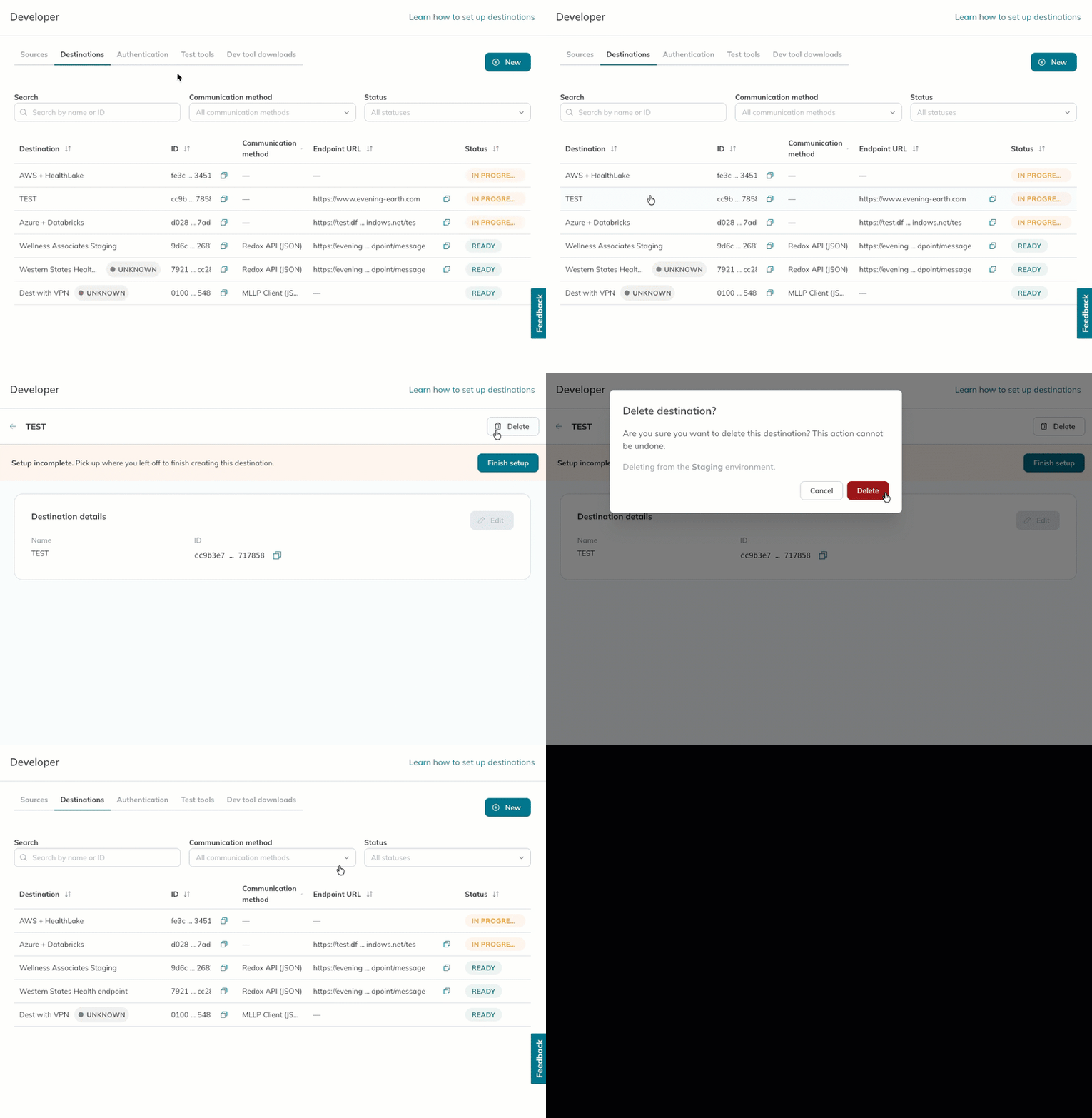
- Follow the steps to view destinations.
- Find the destination you want to delete and click anywhere in its row.
- The Details page opens. Click the Delete button in the top-right corner.Can’t delete production destination

Delete a destination - A modal appears asking you to confirm the deletion. Click the Delete button to confirm—or the Cancel button if you changed your mind.
Platform API endpoints