
Answer Carequality requests without the Redox responder

Last updated: May 21, 2026
IMPLEMENTATION
DEVELOPER
HEALTH TECH VENDOR
SUPPORT
Talk to a Redoxer first

We typically recommend that you use Redox as your responder to the Carequality Interoperability Framework. We do have a legacy option, however, that allows you to be your own responder.

To use this legacy option, you first have to talk to a Redoxer or your Technical Account Manager to make sure that you’re eligible per Carequality’s requirements.

This guide is for legacy users that respond to incoming Carequality requests on their own.

Supported data models

Review the details about event and document types to get oriented.

Event types

As your own responder, you’ll use the ClinicalSummary.Document event types. Check out these API schemas for details about required and optional fields:

Document types

The most common and valuable document type for Carequality participants is the Continuity of Care Document (CCD), which has a LOINC code of 34133-9. We recommend making CCDs available to respond to document requests.

You can respond with other document types, but talk to your Technical Account Manager about alternatives first.

Set up your system

  1. Request a direct connection to Carequality. This is a different process from setting up an onramp to Carequality, where Redox responds to your incoming Carequality requests.
  2. Go through the steps of setting up an onramp to Carequality, but skip the data on demand steps.
  3. Set up a standard endpoint URL destination in your system so that you can receive queries from Carequality participants.
  4. Create and authenticate an API key (or use an existing one) so you can query Carequality.
  5. Make sure you support these fields for receiving and processing DocumentQuery:
    1. Patient.Identifiers array (Patient identifier and identifier type should persist to your system as you push patient demographics.)
    2. all Visit fields
    3. Document.Types array
      Optional fields

      Any other fields are optional for you to implement as you choose for your system.

  6. Make sure you support these fields for responding with DocumentQueryResponse:
    1. Documents[].ID string
      Handling document IDs

      The requester uses the network document ID for the DocumentGet query. Make sure to save and store document IDs to your system.

      If you dynamically generate documents, make sure to persist and cache document IDs for a reasonable amount of time (e.g., 24 hours). That way, you don’t have to rebuild the document if the requester asks for the document multiple times within a short time.

      The network document ID must be globally unique, so please use a UUID or your {{OID}}.{{DOCUMENT-ID}} (e.g., 2.16.840.1.113883.3.6147.458...^1234).

  7. Plan for how to respond with DocumentGetResponse, depending on document type:
    1. If you plan to respond with non-CCD documents, you must be able to populate these fields for DocumentGetResponse:
      1. Meta.DataModel and Meta.EventType
      2. Document.ID
      3. FileType
      4. Data
        Optional fields

        Any other fields are optional for you to implement as you choose for your system.

    2. If you plan to respond with CCDs, you can choose to respond either in the traditional format (i.e., XML) or in an alternative format.
      1. For the traditional format, you must be able to populate the same fields noted for non-CCD documents.
      2. For the alternative format, you can use the DocumentGetResponse required Meta fields and include the body fields from either VisitPush or PatientPush event types instead.
        Example: DocumentGetResponse for alternative documents
        json
        1
        {
        2
        "Meta": {
        3
        "DataModel": "Clinical Summary",
        4
        "EventType": "DocumentGetResponse"
        5
        },
        6
        "Header": {
        7
        "DirectAddressFrom": null,
        8
        "DirectAddressTo": null,
        9
        "Document": {
        10
        "Author": {
        11
        "ID": "4356789876",
        12
        "IDType": "2.16.840.1.113883.4.6",
        13
        "FirstName": "Pat",
        14
        "LastName": "Granite",
        15
        "Credentials": [
        16
        "MD"
        17
        ],
        18
        "Address": {
        19
        "StreetAddress": "123 Main St.",
        20
        "City": "Madison",
        21
        "State": "WI",
        22
        "ZIP": "53703",
        23
        "County": "Dane",
        24
        "Country": "USA"
        25
        },
        26
        "EmailAddresses": [],
        27
        "PhoneNumber": {
        28
        "Office": "+16085551234"
        29
        },
        30
        "Type": null,
        31
        "Location": {
        32
        "Type": null,
        33
        "Facility": null,
        34
        "Department": null,
        35
        "Room": null
        36
        }
        37
        },
        38
        "ID": "75cb4ad4-e5f9-4cd3-8750-eb5050521e0d",
        39
        "Locale": "US",
        40
        "Title": "Community Health and Hospitals: Annual Physical",
        41
        "DateTime": "2012-09-12T00:00:00.000Z",
        42
        "Type": "Progress Note",
        43
        "TypeCode": { ...
        44
        },
        45
        "Visit": {
        46
        "StartDateTime": "2022-05-20T18:11:48.972Z",
        47
        "EndDateTime": "2022-05-20T18:11:48.972Z",
        48
        "Reason": "Annual Physical",
        49
        "VisitNumber": "30311442",
        50
        "Type": {
        51
        "Code": "99202",
        52
        "CodeSystem": "2.16.840.1.113883.6.12",
        53
        "CodeSystemName": "CPT",
        54
        "Name": "Office visit",
        55
        "AltCodes": []
        56
        },
        57
        "Location": {
        58
        "Type": "Outpatient Clinic",
        59
        "Facility": "RHS Vista Oaks Clinic",
        60
        "Department": "Vista Oaks Clinic",
        61
        "Room": null
        62
        }
        63
        }
        64
        },
        65
        "Patient": {
        66
        "Identifiers": [
        67
        {
        68
        "ID": "1234",
        69
        "IDType": "2.16.840.1.113883.4.6",
        70
        "Type": null
        71
        }
        72
        ],
        73
        "Demographics": {
        74
        "FirstName": "Myra",
        75
        "MiddleName": null,
        76
        "LastName": "Jones",
        77
        "DOB": "1947-05-01",
        78
        "SSN": "123-101-1234",
        79
        "Sex": "Female",
        80
        "Address": {
        81
        "StreetAddress": "1357 Amber Drive",
        82
        "City": "Beaverton",
        83
        "State": "OR",
        84
        "County": null,
        85
        "Country": "US",
        86
        "ZIP": "97006"
        87
        },
        88
        "PhoneNumber": {
        89
        "Home": "+18162766909",
        90
        "Mobile": null
        91
        },
        92
        "EmailAddresses": [
        93
        {
        94
        "Address": "12313124@fake.com"
        95
        }
        96
        ],
        97
        "Language": null,
        98
        "Race": "White",
        99
        "Ethnicity": "Not Hispanic or Latino",
        100
        "Religion": "Christian (non-Catholic, non-specific)",
        101
        "MaritalStatus": "Married"
        102
        }
        103
        }
        104
        },
        105
        "AllergyText": ...,
        106
        "Allergies": []
        107
        }

Generate documents

You must decide how you want to manage and provide documents when Carequality participants request them. You can generate documents in your database either:

  1. (Recommended) Dynamically, at the time of the query.
    • You must generate documents in a performant manner. We also recommend caching the document for a reasonable amount of time for your system (e.g., 24 hours). That way, if the requester asks for it again within a short time, you don’t have to rebuild it.
    • The benefit of generating documents dynamically is that the requester doesn’t have to locate one document in a large list. Instead, the specific document they want is generated when they want it.
  2. Immediately, upon completing a patient visit and retaining the document indefinitely.
    • Immediately doesn’t have to be real-time. For example, you could choose to generate documents as part of a nightly batch job.
Redox document IDs

Whenever you generate documents (whether dynamically or immediately), a local document ID is created within your system. The local ID is assigned by your system and it may or may not be unique.

We also create a network document ID for the same document. The network ID is a unique identifier assigned by Redox to identify the document within Carequality.

Validate your system

  1. Download our Postman collection and staging environment so you can send test requests to validate your system. Learn how to access dev tools.
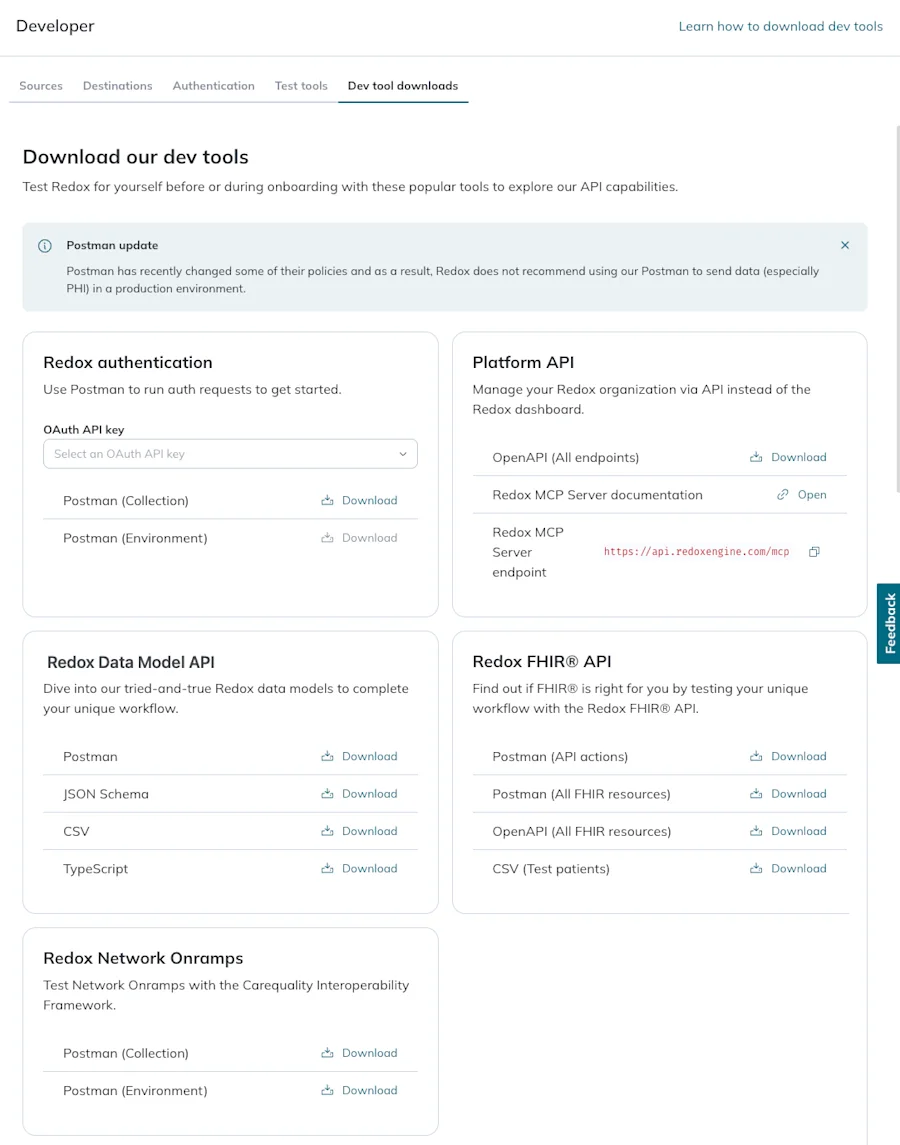
    Dev Tool downloads are grouped together under the Developer > Test Tools page of the Redox dashboard.
    Dev tool downloads
  2. When you test, you’re essentially acting as an external Carequality participant querying yourself. You’re free to validate in production too, but it’s not required since you already have the data.
  3. Send a ClinicalSummary.DocumentQuery with the network patient ID for a test patient to the Redox gateway: 2.16.840.1.113883.3.6147.458.2.
  4. We resolve it to your local patient ID and forward the request to your configured destination.
  5. After receiving a DocumentQuery, perform these steps with a Redoxer to validate that you respond successfully (with DocumentQueryResponse). For each of the responses, you include the local document ID, which Redox translates to the network document ID. Confirm that:
    1. You can respond with a list of all your available documents for the patient with no specific search parameters.
    2. You can respond with a list of documents filtered down to a specific document type.
    3. You can respond with a list of documents filtered down to a specific visit date range. Make sure you can support both start/end dates, only start date, and only end date.
    4. Test whether you can respond for a patient that has no related documents. This helps you define how to handle the interim state between locating a patient and preparing a document.
  6. Send a ClinicalSummary.DocumentGet with the network document ID to the Redox gateway: 2.16.840.1.113883.3.6147.458.2.
  7. Redox resolves it to the local document ID and forwards the request to your configured endpoint.
  8. After receiving the DocumentGet, perform these steps with a Redoxer to validate that you respond successfully. Confirm that:
    1. You can find a document and return it in the right format—and you receive it back in response to your query.
    2. You can handle responding with the appropriate error code when you fail to locate a document.
Send errors

If your system experiences errors while you’re processing incoming requests, you can respond with any of these errors in the body.XDSErrors.code field:

  • XDSRepositoryOutOfResources
  • XDSRepositoryBusy
  • XDSRepositoryError
  • XDSUnknownPatientId

Include any extra information you want to relay back to the sender about the error in the body.XDSErrors.message field.

Example: Format for errors you return to Carequality
json
1
{
2
"body": {
3
"XDSErrors": [
4
{
5
"code": "XDSUnknownPatientId",
6
"message": "Patient Not Found."
7
}
8
]
9
}
10
}

FHIR® is a registered trademark of Health Level Seven International (HL7) and is used with the permission of HL7. Use of this trademark does not constitute an endorsement of products/services by HL7®.