
A log is a step-by-step record of what data was exchanged, including the request, operation, and payload details. You can view and search successful, failed, or pending logs in the Redox dashboard from the last 60 days. Learn more about logs.
Search for a specific log or use the log filters to narrow down the list of logs.
- Any user can search and view log metadata. However, a user must be assigned to a support or an engineer role to search and view log payloads or use Payload Summary Assistant. Learn how to manage user roles.
- To use Log Summary Assistant or Payload Summary Assistant, the organization owner must have enabled AI assistants must be enabled in your organization. Learn how to enable AI features.
- Log in to the Redox dashboard.
- From the navigation menu, click the Logs page.
- By default, the logs search bar and filters display, along with any logs for the last 7 days. Use search terms, filters, or a combination of both to search for logs.
- For search filters, select options from any of these drop-down fields:
- Connection
- Sources / destinations
- Date range (use start date, end date, or both)
- Data model
- Event type (only enabled if the Data model filter is populated)
- Type
- Status

Log filters Extra search filters
- For search terms, review our searchable fields at the end of this article. Then, enter any of these values into the search bar based on the supported searchable fields:
- metadata identifiers (This is the only search term option available to users assigned to observer roles.)
- patient ID or namePatient name tipsNo fuzzy matching
- provider ID
- visit number or ID
- record (i.e., any other ID value specific to a data model)
- After entering search criteria, the list of search results display on the left side of the page. Each log entry shows the status of the log. Learn about log statuses.
- Select any of the log results, and click any log processing stage to view any details or payloads.

Log details Operation details in logs - (Optional) If AI assistants are enabled in your organization:
- Use Log Summary Assistant: Click the Summarize button above the log details to see a quick summary of the log purpose, processing flow, and outcome.

Example of a log summary - Use Payload Summary Assistant: Click the Summarize button above the payload to see a quick summary of the payload contents at this point in log processing. This is helpful if you want to see if certain goals, interventions, outcomes, patient info, or provider info is available in the payload.

Example of a payload summary
- If you want to share a log with a team member, click the copy link icon next to the log ID.
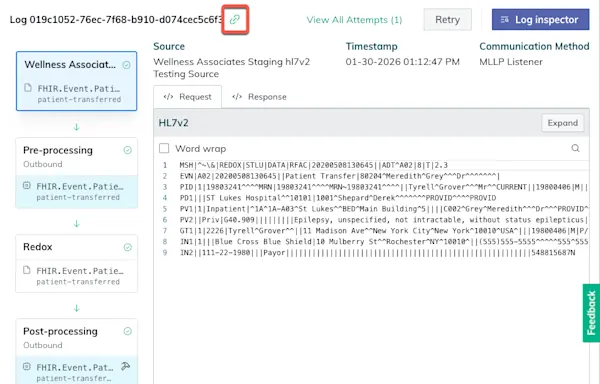
Share a log
We support searching for terms in specific fields for a given Redox data model or Redox FHIR® resource / notification. That means if you try to search for a keyword that would exist in a different field than one listed below, we won’t return any matching logs.
Review searchable fields by data model type.
Review the list of supported searchable fields by FHIR® resource type. Keep in mind that only some FHIR® interactions or operations are searchable. Learn about FHIR® interactions and operations.