
To get started, you must create a Redox Help Center account to submit requests in our customer portal.
- Click the Sign in menu option.
- The login screen appears. Click the Sign up link to create a new account.
- Enter your full name and email address, then click the Sign up button.Work email address

Enter name and email address - We send a confirmation email address. Check your inbox to find the Create a password email. Click the Create a password link to finish creating your account.
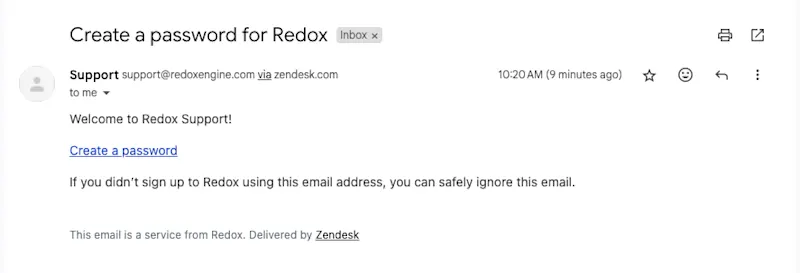
Email to create a password - The Help Center opens with a password modal. Enter your new password, then click the Set password button.
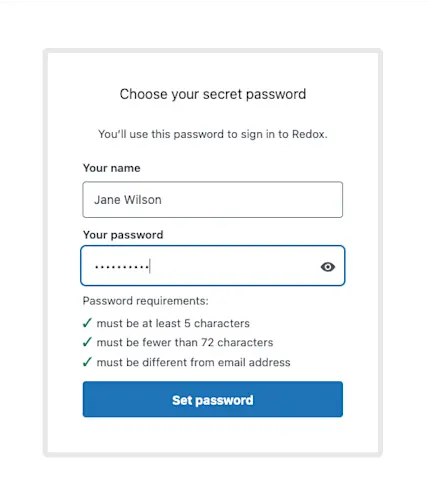
Set a password - The Redox Help Center opens.
Learn more about what kind of requests to submit, including expected SLA times.
After successfully submitting a request, you’re redirected to a summary page. You can review or add comments to your request.
As we review and resolve your request, we provide updates via the comments in the portal. You receive an email whenever we update the status or add a comment. You can reply to the email or comment directly on the request to respond.
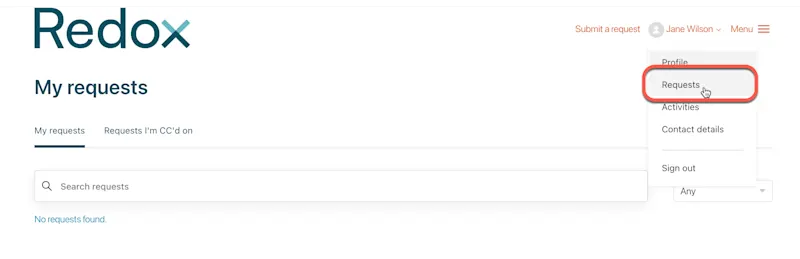
To check on the request in the portal, click your user name in top menu of the Help Center. Then click the Requests option to see and comment on your open tickets.
When submitting a new request, add a team member’s email address in the CC field. Your team member receives an email prompting them to set up a Help Center account.
After a request has been opened, you can still include a team member by adding them to the CC field when making a new comment on the request.
Alternatively, you can copy a team member on an email about the request. By doing so, your team member receives any future email updates about the request.