
We offer AI-powered tools to aid your workflow in the Redox dashboard.
- Log Summary Assistant: Get an overview of a log’s purpose, processing, and outcome. Learn more about logs.
- Payload Summary Assistant: Break down a complicated payload into its business and data context.
- Config Modifier Assistant: Build a config modifier schema with the help of an AI agent that already understands our unique config modifier coding language. Learn how to build a config modifier schema.
- MCP server: Enables you to manage your Redox organization and subscriptions with an agentic tool via natural language prompts. You can use our MCP server with any MCP-compatible AI client. Learn how to access the MCP server.
To use any of these features, you must first enable them in your Redox organization.
- A user must be assigned to an organization owner role to enable AI assistants or the Redox MCP server. Learn how to manage user roles.
- Log in to the dashboard.
- Click your username at the bottom of the navigation menu.
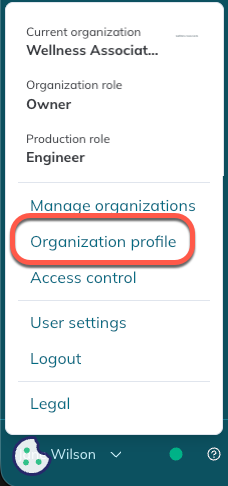
- From the user menu, select the Organization profile option.

Organization Profile option of the user menu - By default, the Organization info page displays. Click the Settings tab.
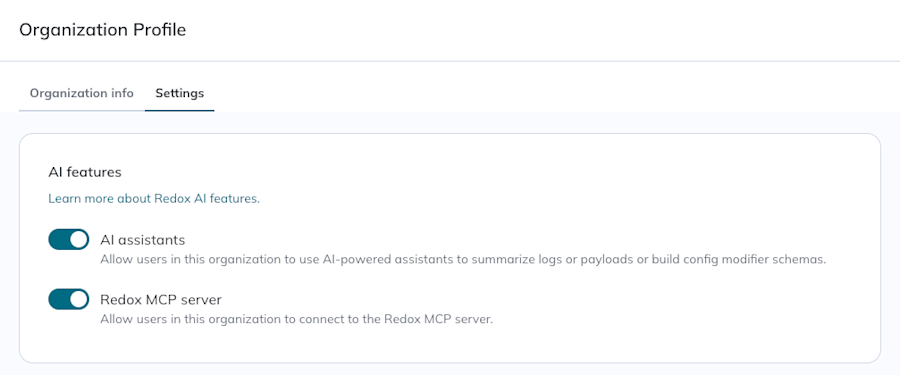
- Under the AI features section, enable either or both of the AI features.
- Click the AI assistants toggle to enable AI assistants (Log Summary Assistant, Payload Summary Assistant, Config Modifier Assistant) for all users in your organization.
- A consent modal opens. Click the Enable button to acknowledge and confirm.AI assistant consent
- Click the Redox MCP server toggle to allow users in your organization to connect to the Redox MCP server. Learn how to access the MCP server.

Enable AI features for your Redox organization


To disable either of these later, simply click the respective toggle and confirm that the feature(s) should be disabled.
Depending on your agent, you might need to reinstall or refresh the tools list to get our latest MCP server updates.
These are the steps to refresh the tools list for Claude specifically.
- In Claude, navigate to Customize > Connectors list.
- Find the Redox MCP connector in the list.
- In the connector details, click the three-dots icon (next to the Disconnect button) in the upper-right corner.
- Select the Refresh tools list option.
- Any of the latest Redox MCP server updates are now be available.