
You can remove any user from a Redox organization. Doing so means the user loses access to the entire organization and all its environments. Learn more about Redox organizations and users.
There are extra steps in your identity provider (IdP) if you have an SSO Redox organization.
- A user must be assigned to an organization owner role to manage users. Learn more about user roles.
- Log in to the dashboard.
- Click your username at the bottom of the navigation menu.
- From the user menu, select the Access control option.
- By default, the Users tab opens with a list of the organization’s users with their corresponding email address and assigned organization role. Find the user you want to remove and click anywhere in the row.
- The user’s profile opens. Click the Delete button to remove the user from the organization.
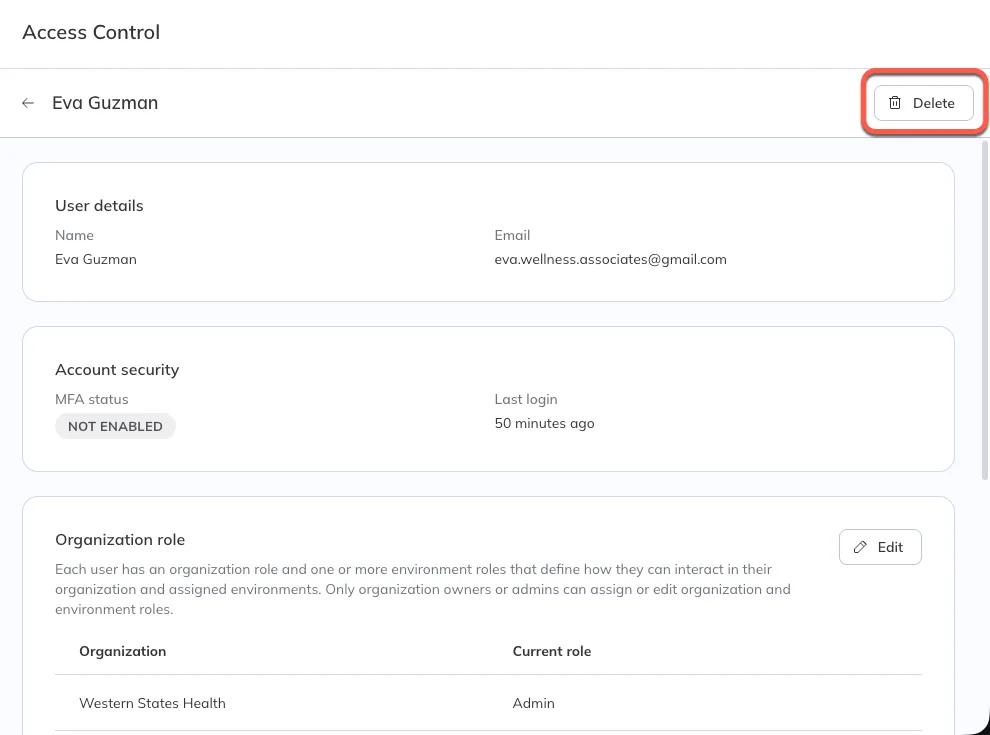
Delete a user
For SSO-enabled organizations, you must complete steps in both your identity provider (IdP) and the Redox dashboard. Refer to your identity provider’s docs for managing users in their system.
- Remove a user from your IdP.
- Remove the user record from the Redox organization. If you only remove the user from the IdP, the user still appears in the active users list of the Redox organization (though they couldn’t log in). You should remove the record in Redox to keep your audit logs clean.
Platform API endpoints