
All MLLP sources (whether owned by you or your connection) use a VPN to secure your data exchange. You can check the VPN status of MLLP sources in the Redox dashboard in these three places:
- Navigate to the Developer > Sources tab and view the VPN status on the MLLP source tile. Learn how to view or set up sources.
- Navigate to the Connections > Connected orgs tab and view the VPN status on the source tile on the left side of the subscription arrow (if you own the source) or the right side of the subscription arrow (if your connection owns the source). Or, click the source name to view a details page with more information.
- Navigate to the Connections > All subscriptions tab to view the VPN status under the source or destination name. Or, click the source or destination name to view a details page with more information.
- Your organization or your connection must have an MLLP source or destination to view VPN statuses.
A VPN status represents the state of the VPN tunnel configured between Redox and your system, or your connection’s system and Redox. You might want to check the VPN status if you see one or more failed requests to or from a VPN-secured configuration.
For details about each VPN test and status type, check out the definitions at the end of this article.
A user in your organization should receive an email notification like this one if there’s a VPN-related error. Learn how to monitor alerts in the dashboard.

Alternatively, you can create a traffic alert rule to proactively receive notifications related to VPN issues.
- Log in to the Redox dashboard.
- From the navigation menu, click the Connections page.
- By default, the Connected orgs tab opens with all of your connections. Either select the connection tile with the VPN source or destination you want to check or click the All subscriptions tab to view all connections at once. Either view has the same information in different formats. Read more about subscriptions.
- Locate the MLLP source or destination you want to check and hover over the status icon. The Network status list modal appears with the details, including the IP and port values. Review the status definition table to find out what each color means.
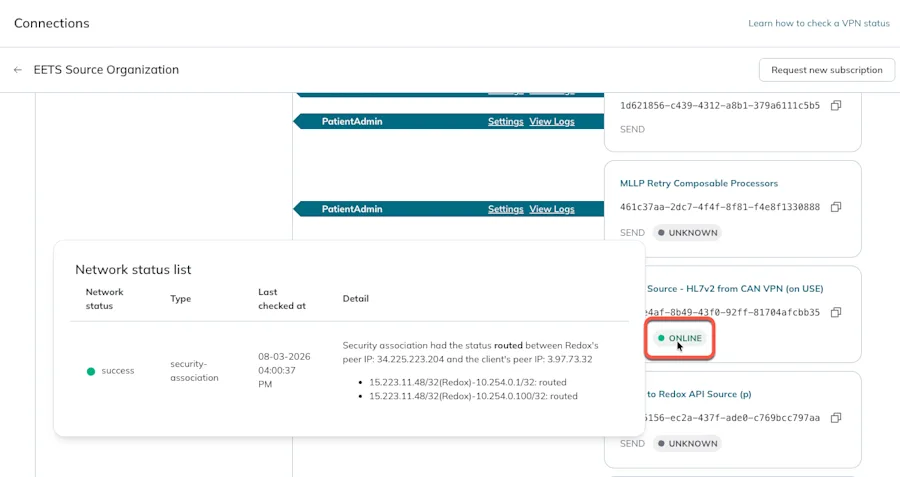
Connected orgs tab - Check a VPN status 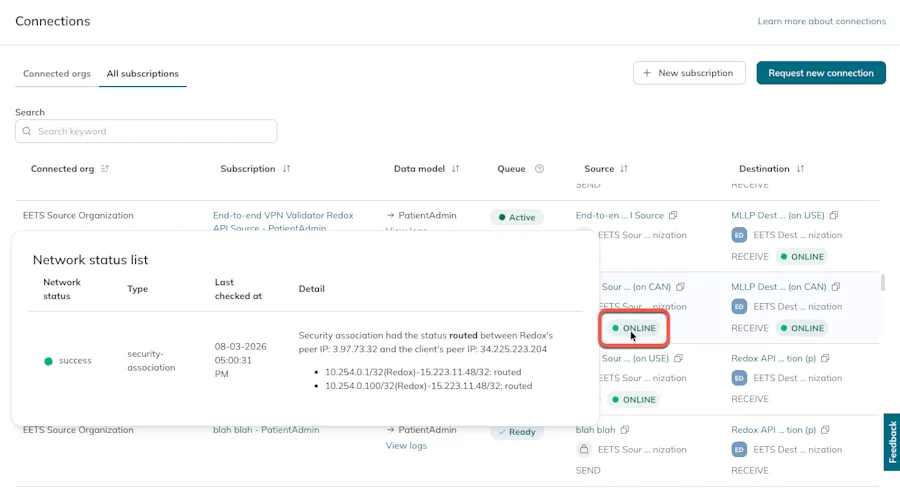
All subscriptions tab - Check a VPN status - If you want more details about the VPN test or status, click the source or destination name.
- The Details page opens with the VPN network status. The table contains the results from any VPN test(s). A status check can include either a Security Association (SA), TCP heartbeat or ping, or both. Review the test types and definitions below this section.
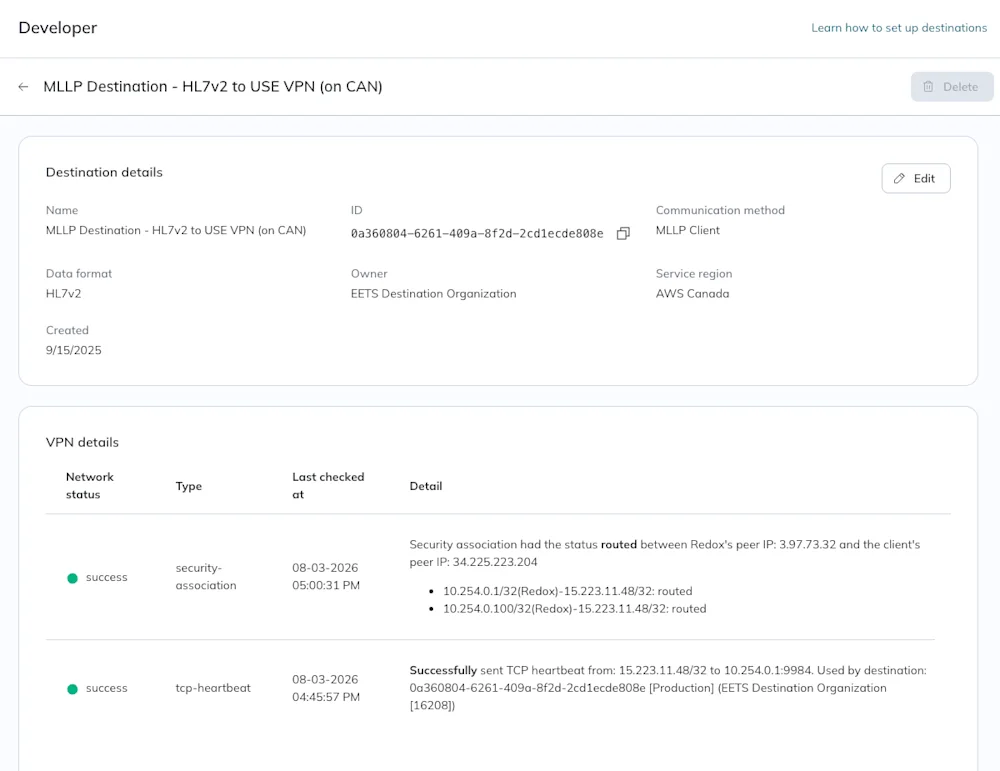
VPN network status If you see a ping instead of a TCP heartbeat
A status check can include either a Security Association, TCP heartbeat or ping, or both.
- Security association (SA): Tests that both servers have the necessary information to exchange data securely. This tells you whether the VPN tunnel is active.
- TCP heartbeat: Tests whether the VPN destination is receiving data from Redox. This is our default check and is recommended over a ping since it’s more reliable. Read more about TCP heartbeat. Sometimes an interface setup doesn’t support a TCP heartbeat, in which case, we may fall back to testing with a ping.
- Ping: Tests whether the VPN destination is receiving data. Read more about ping.
Review the table below for a breakdown of the possible statuses.
The overall status appears underneath the source or destination.
Status color | Notes |
|---|---|
Green | Success. For a source that sends data over VPN, this means that Redox has an established SA over VPN. For a destination that receives data over VPN, this is a combined status of the SA and TCP heartbeat or ping tests. Since the combined status reflects the worst case status between the two, a green status means that Redox has an established SA over VPN and can communicate with the configured VPN IP (with a TCP heartbeat test, Redox can also communicate with the configured port). |
Red | Failure. For a source that sends data over VPN, this means that Redox couldn’t establish an SA over VPN. For a destination that receives data over VPN, this is a combined status of the SA and TCP heartbeat or ping tests. Since the combined status reflects the worst case status between the two, a red status means that Redox either can’t establish SA over VPN or can’t communicate with the configured VPN IP (with a TCP heartbeat test, this would include not being able to communicate with the configured port). |
Yellow | Warning. For a destination that receives data over VPN, the VPN is healthy. However, the connection’s firewall or interface is responding with an error. The VPN destination may not be listening on the port that Redox is sending to or you may need to complete routing rules. |
Gray | Unknown. Indicates that there’s insufficient data to determine the VPN status. |
The detailed status displays when you hover over the status icon. Alternatively, you can click the source or destination name to open its Details page with status and port information.
VPN test type | Status color | Notes |
|---|---|---|
SA | Green | Success. Redox has an established SA over VPN. |
SA | Red | Failure. Redox couldn’t establish an SA over VPN. |
SA | Gray | Indicates that there’s insufficient data to determine the source’s status. |
TCP heartbeat | Green | Success. Redox can communicate with the configured VPN IP and port. |
TCP heartbeat | Yellow | Warning. The VPN is healthy, but the connection’s firewall or interface is responding with an error. The VPN destination may not be listening on the port to which Redox is sending or you may need to complete routing rules. |
TCP heartbeat | Red | Failure. Redox can’t communicate with the configured VPN IP and port, probably due to firewall, configuration, or networking issues. |
TCP heartbeat or ping | Gray | Unknown. Indicates that there’s insufficient data to determine the destination’s status. |
Ping | Green | Success. Redox can ping the configured VPN IP. |
Ping | Red | Failure. Redox can’t communicate with the configured VPN IP. |